
Make Every File Work for You! ✨
10 Free Downloads Await! Sign up for Creative Fabrica’s All Access Free Trial and enjoy 10 free downloads to kickstart your creative projects.
✨ Supplies for Project
⇢ 1/8th Inch MDF
✨ File Download
⇢ Spooky Halloween Train
If you find yourself with a laser file where pieces are supposed to fit together, but your material is either too thin or too thick for it to work, this is how you can alter the file in Inkscape so everything fits perfectly.
Step 1 – Find Your Materials Exact Thickness
The first thing we are going to need to do is figure out the exact thickness of the material we are using for the project. To do that, we need to cut out a test piece.
I know my MDF material claims it is 1/8th inches thick, approximately 3mm. But since the laser is going to obliterate material away in the cutting process, and materials aren’t always exact in measurement, we will need to try a few different sizes.
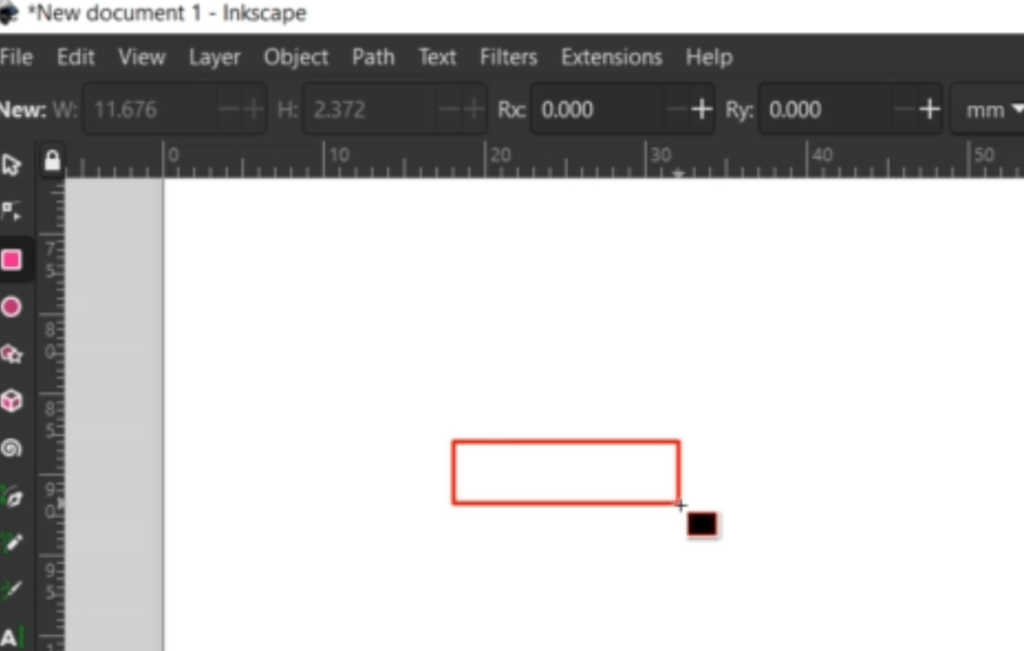
To get started, I draw out an arbitrary rectangle.
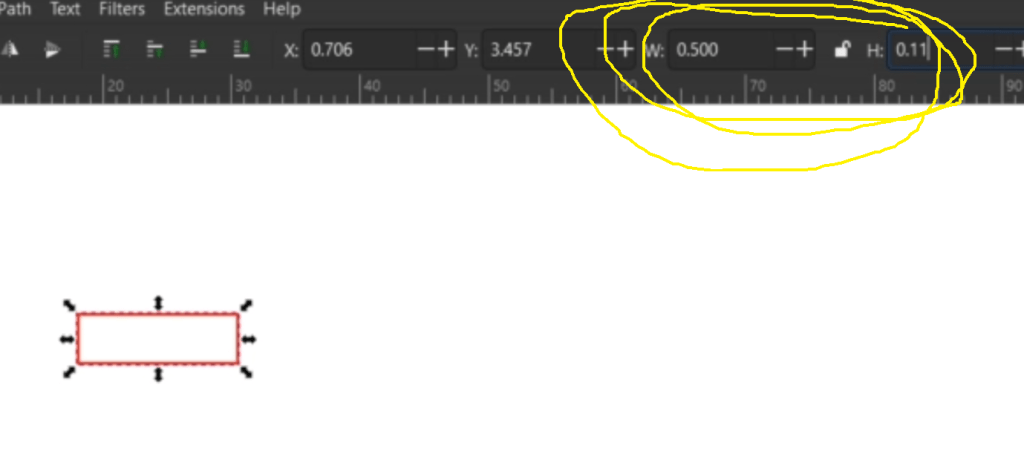
Now I will change the size up here in the middle-right corner. I make sure this lock is in the unlocked position and that it is in the inches setting.

I know the decimal for 1/8th inches is .125, but we want a snug fit, so let’s try a few sizes a bit smaller than that.
For the first rectangle, let’s try .5 inches wide, which isn’t for the width of the material, it will make more sense soon, by .11 for the material thickness.
Then, I copy and pasted (CTRL C + CTRL V) 2 more rectangles underneath. For these, I will make them progressively bigger. The middle one, let’s do .115. And the last one, let’s go .125, which you remember is the original claimed thickness of the MDF material I am using.
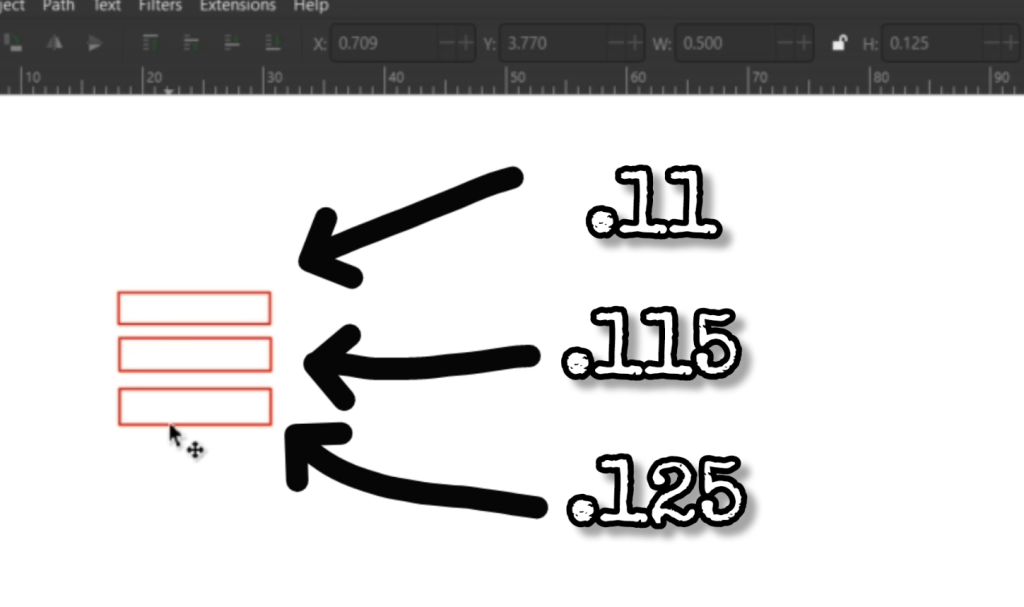
Now I am going to make a .5 by .5 inch square that we will use see which of the rectangles is the perfect fit! Let me cut it out and show you!
So here we have our little measurement experiment.
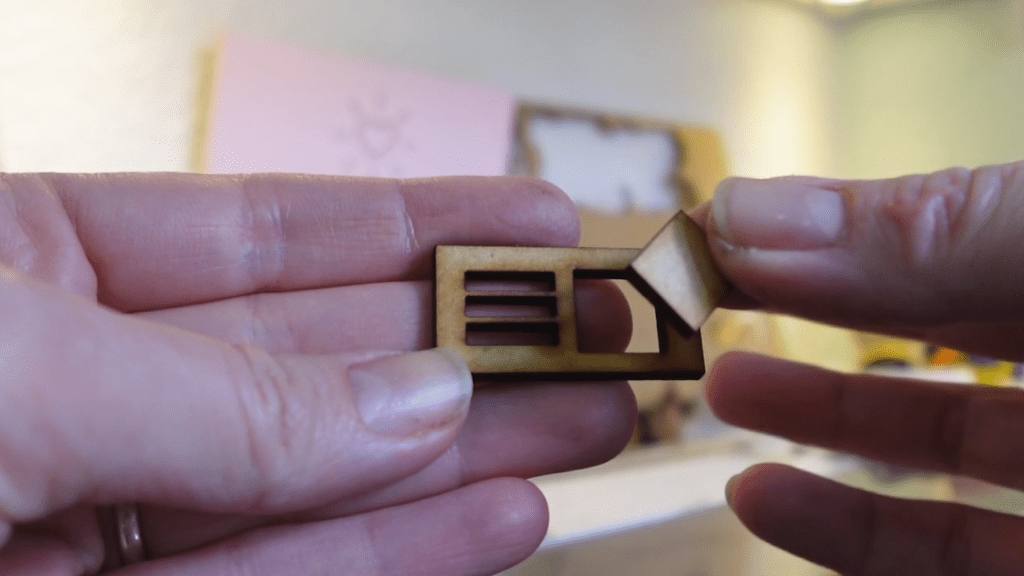
The top hole (.11) is too small and the square won’t fit at all. The bottom hole (.125) is too wide and it slips right through. And just like baby bears porridge, the middle hole (.115) is just right.
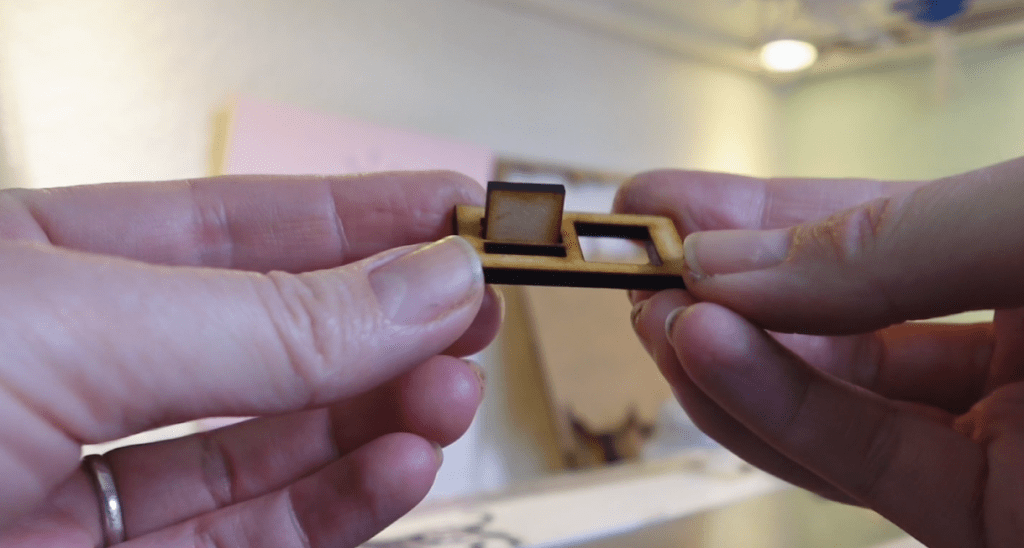
Now we have the measurement to alter the laser file with!
How to Alter an Insert Style Laser File
Now, I can show you how to change the dimensions of an insert.
This Halloween Train design came with bases, but the holes are too wide, so let’s change them.

This object needs to be separated. Let’s try to Ungroup by right clicking on the object and clicking on Ungroup.
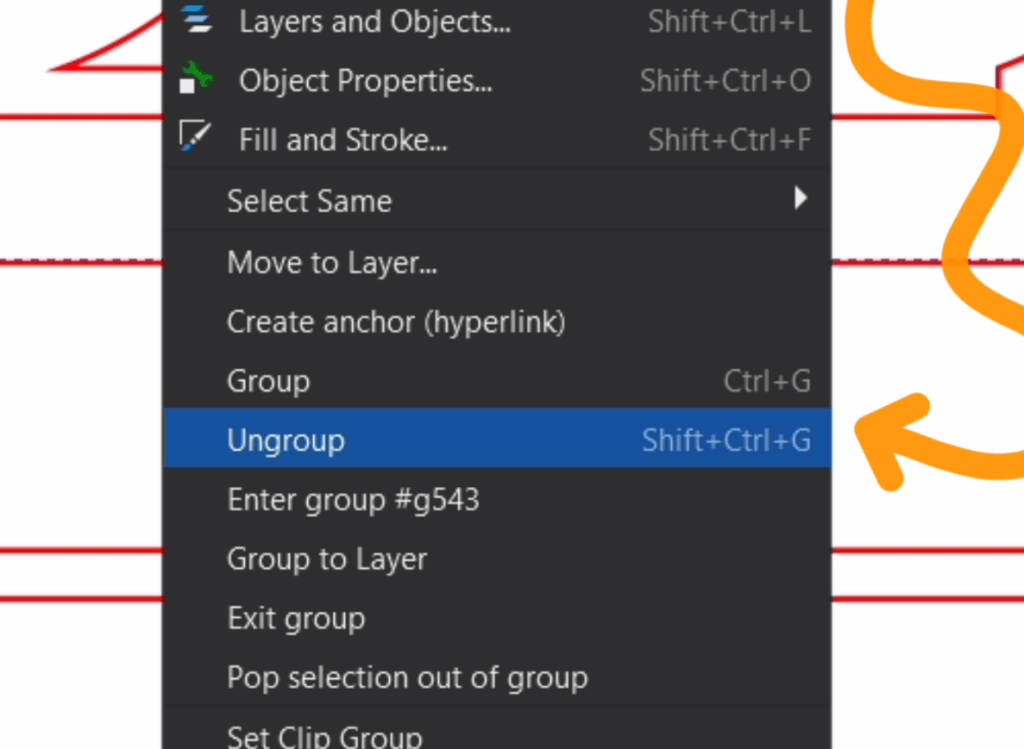
If that doesn’t work, make sure the object is still selected and go up to Path and down to Break Apart.
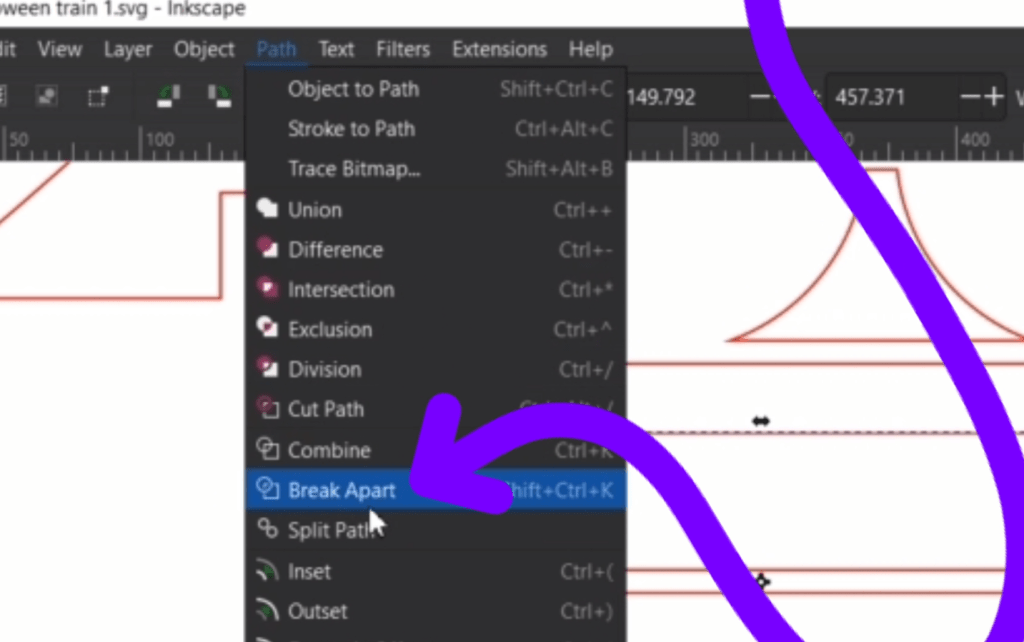
For me, that made the lines weird, so I kept it selected and went down to the white color box with a red x in it to clear out the color and then held SHIFT while selecting red to make the lines show up again.

Now, we can alter the dimensions of this long rectangle that the train is going to sit in. I select it then head up to the dimensions. Making sure the lock is in the unlocked position, I need to adjust the height of it only, not the width. I type in .115 and hit enter. It will adjust the rectangle so our train sits in there just right.
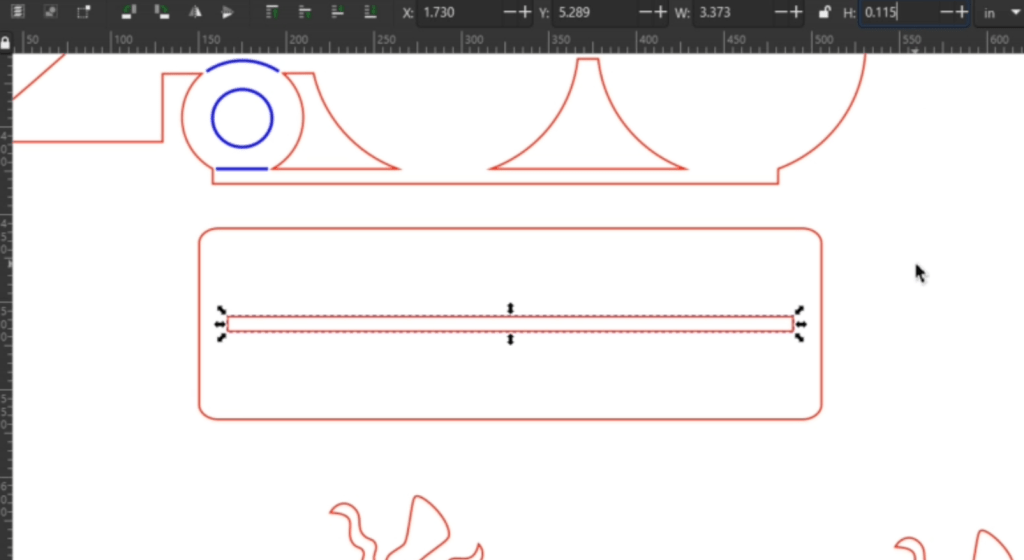
You may need to align the shapes, for these, I realigned them to be perfectly in the middle. I have other inkscape tutorials that go over that quite a bit.
Now I can cut this out and see how snug it is! Perfect!
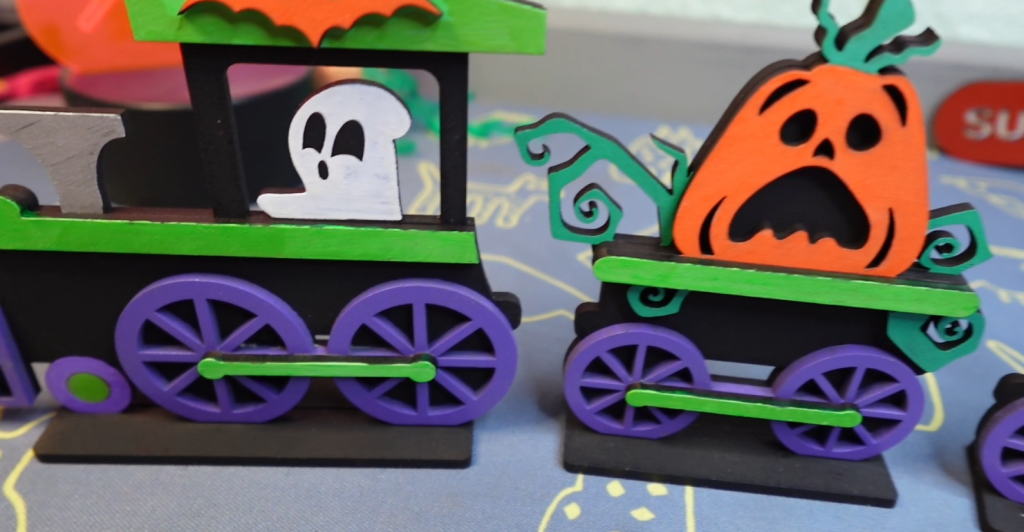
How to Alter a Nestling Style Laser File
Perhaps you need to alter a piece or two that need to interlock with each other. I’m now going to go over how to adjust a file that is either too small or too wide.
Let’s start with how to adjust it if your file is thinner than the material you are using. This is the easier problem to have. Now that we know our material thickness is best cut at .115, I draw out a long rectangle, longer than the length of our notch. I make sure the dimensions for the width is .115.
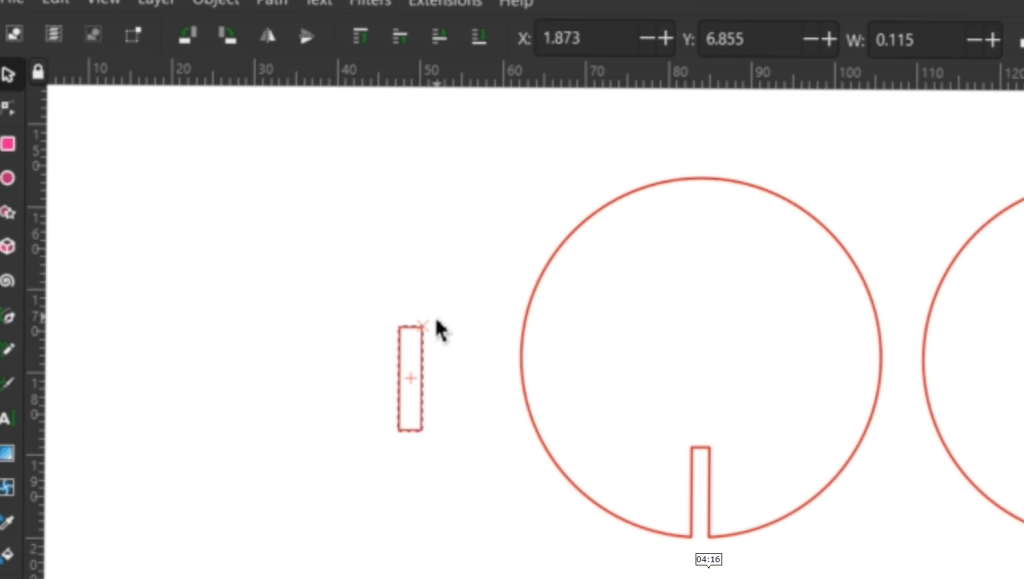
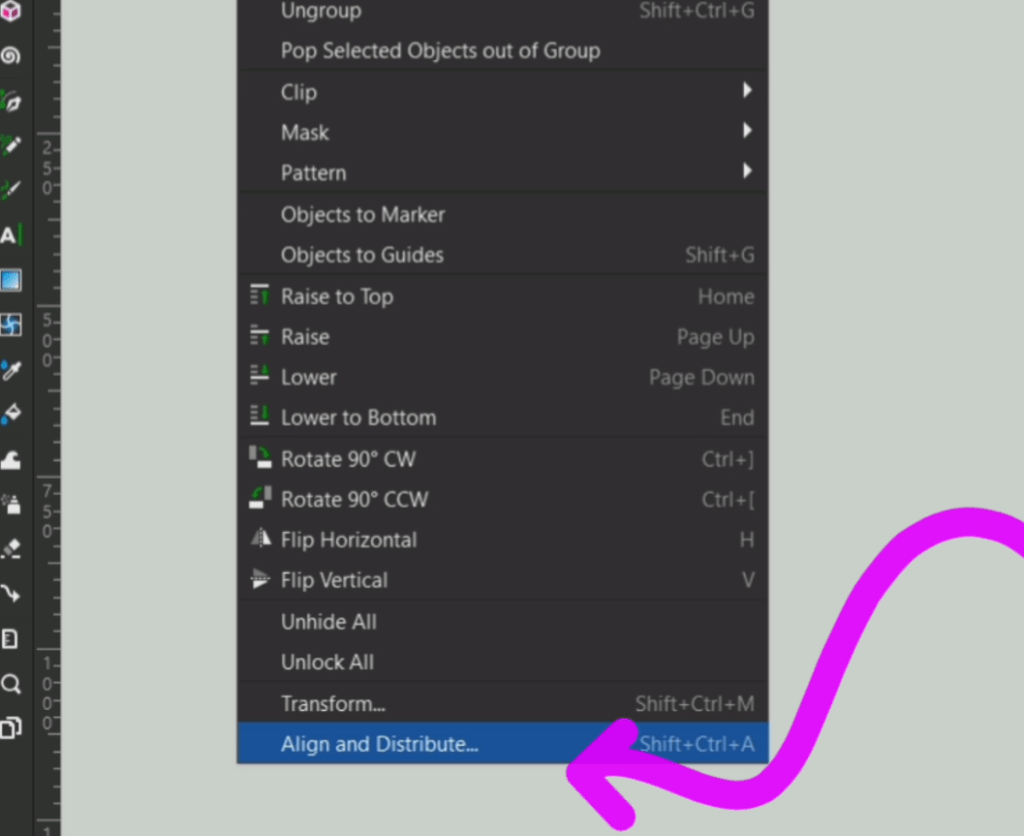
I first make sure the top of my rectangle and the notch are in the same spot then I center it up with the align tool. You can find that on your right hand side bar once you select Align and Distribute under the Object dropdown.
Once it is aligned, select the object as well as your rectangle, go up to Path and Down to Difference.
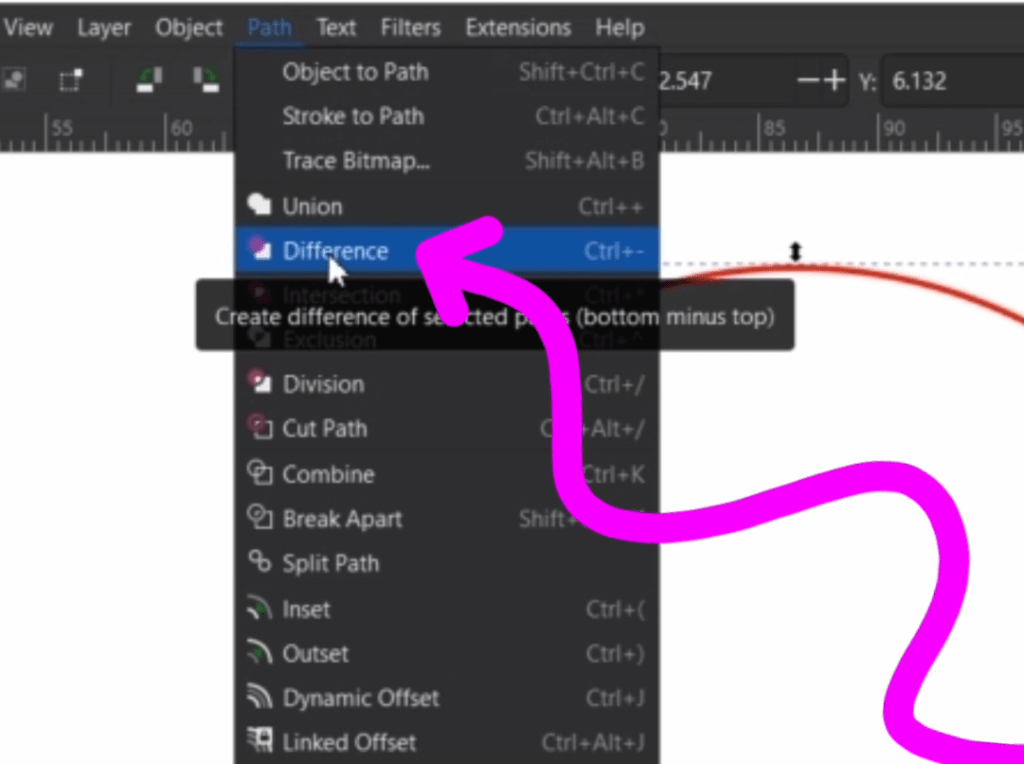
If that doesn’t work try another function in this menu. It depends on your layer order to which one will work. Chances are Difference will cut out the rectangle of your material dimensions into the object you selected along with it.
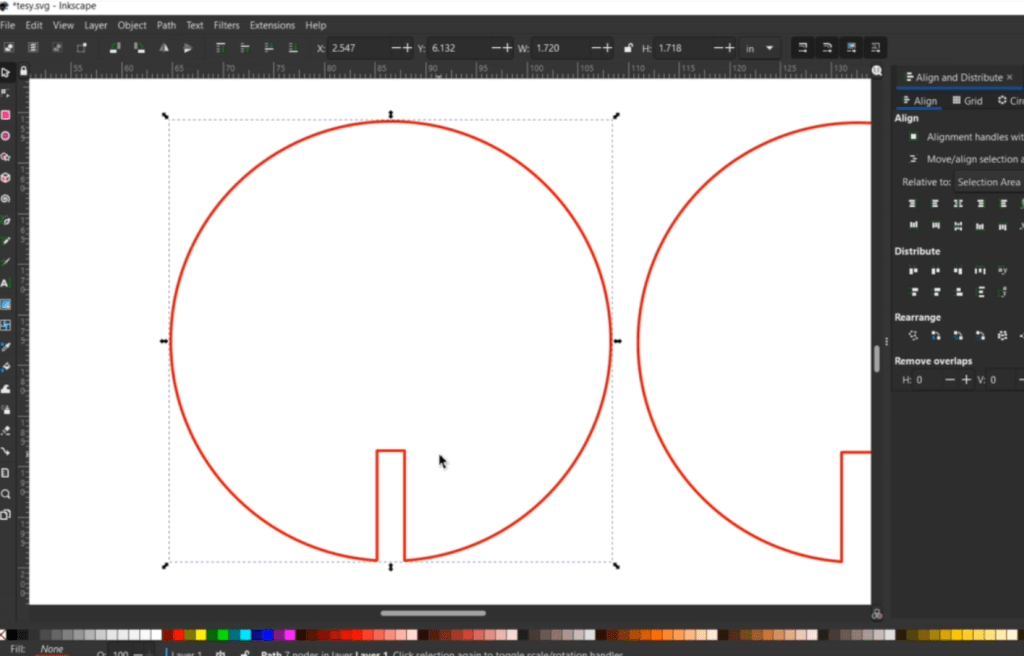
It’s as easy as that!
Next, let’s learn how to alter a notch that is wider than the material we are using. Let’s make another rectangle that is longer than the notch and at the material width we need and that magical width (.115).

I made our measuring rectangle another color then align the top of the rectangle and notch together the best like I did before. Now I am going to double click on the object we need to manipulate. This will bring up its nodes. I select and delete all the nodes, leaving our measuring rectangle alone.
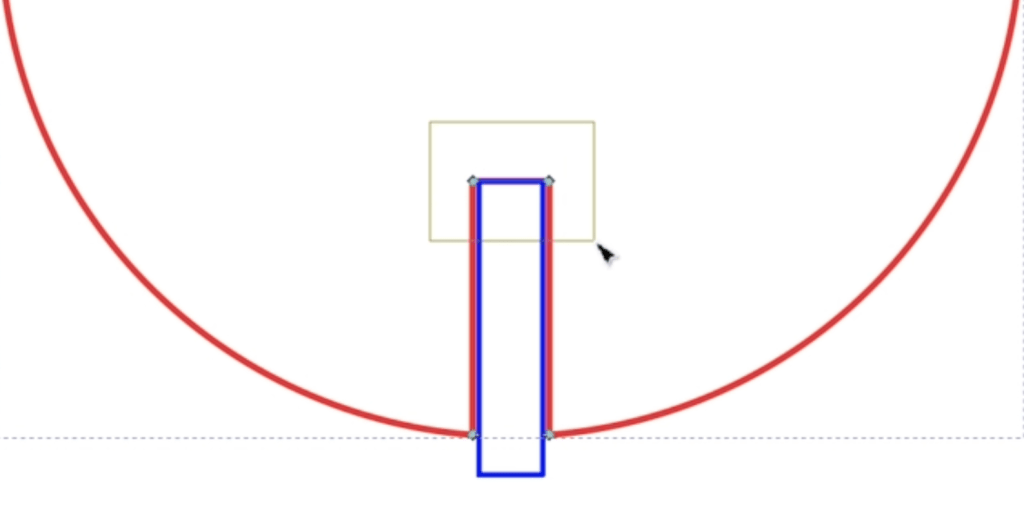
To make this roundy part straight, select the 2 nodes and go up to this line on the top bar and that will flatten out the curve.
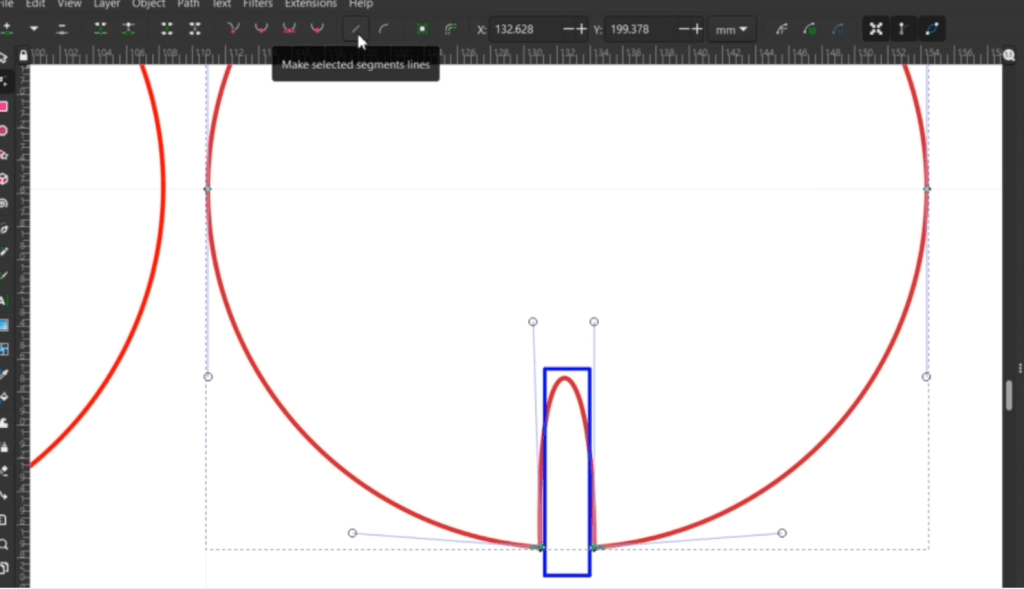
Much like before, I now select the object and the measuring rectangle and go up to Path and Down to Difference.
Now both circles are identical and will fit together perfectly with the material I have chosen.
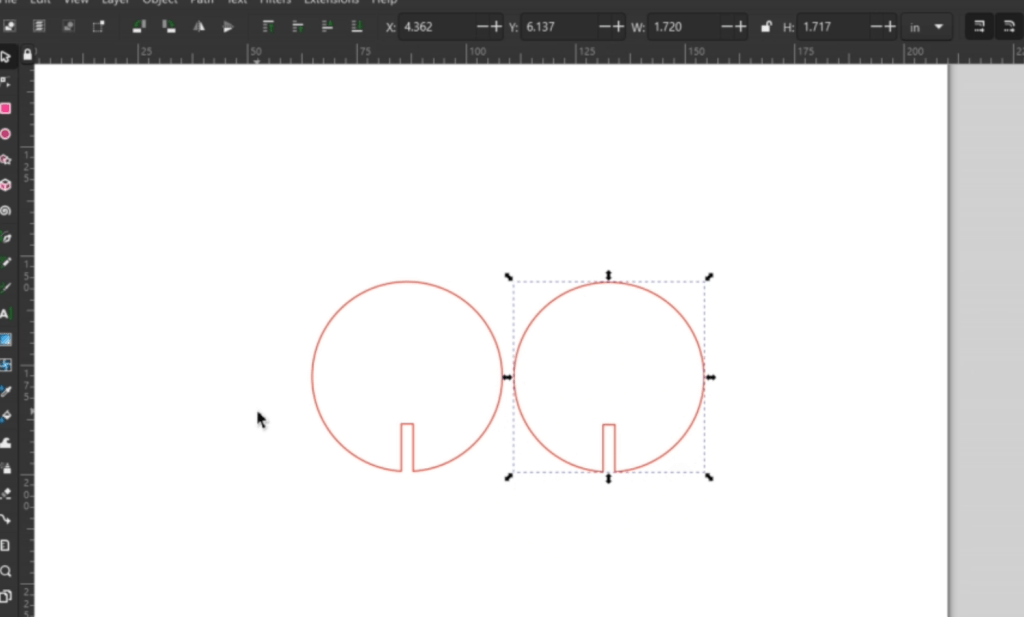
Play around with shapes like these. You will absolutely find other ways to achieve the same result. What I am showing you is just one of the ways.
Check out my other laser tips and Inkscape tutorials!
Sign up for Creative Fabrica’s All Access Free Trial and enjoy 10 free downloads to kickstart your creative projects. Plus they’re having a Subscription Sale, so check it out and Happy Crafting!
Watch the Full Tutorial in the video below!
➕ Subscribe to my YouTube Channel HERE
 Learn with Laser Lady
Leave a comment