
Finally, Graphic Design that’s Easy!
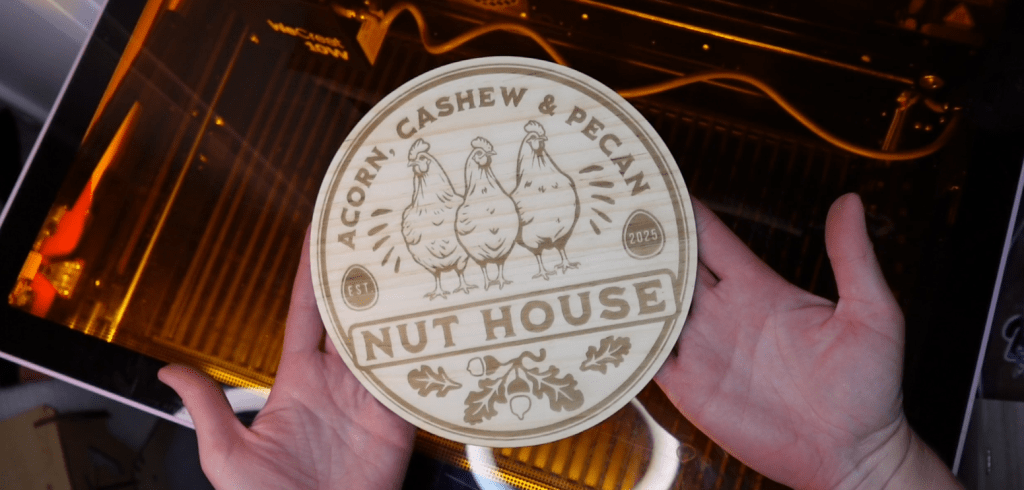
When I started my laser based business in 2014, it was a massive struggle and competition has only gotten worse. But, once I started doing this one thing, everything turned around for me. And lucky for us, we are 11 years in the future, so now it’s easier than ever! Let me explain…
Save 25% Off ALL Kittl Plans with Code: LASERLADYYT
➕ Subscribe to my YouTube Channel HERE
Instantly Become a Graphic Designer
You don’t want to be caught at prom wearing the same dress as someone else, just like you wouldn’t want to be at a craft show selling the same laser project you downloaded as someone else!
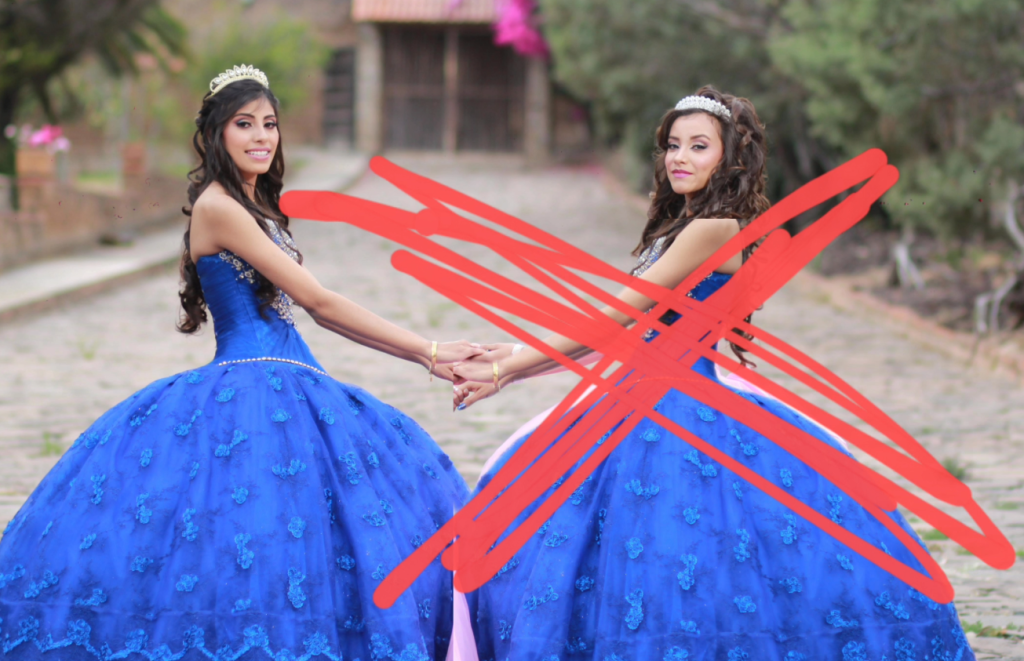
Lucky for us, that’s where Kittl.com comes in! You don’t need any prior experience in graphic design programs to become a master in design!
Let’s jump into their most helpful tool for beginners – their Templates!
Altering a Kittl Template
Even if you want to try Kittl out with a free plan to start, you get access to a gillion templates. But there is one thing that sets it apart from the rest and that is the ability to alter these designs to completely fit our needs.
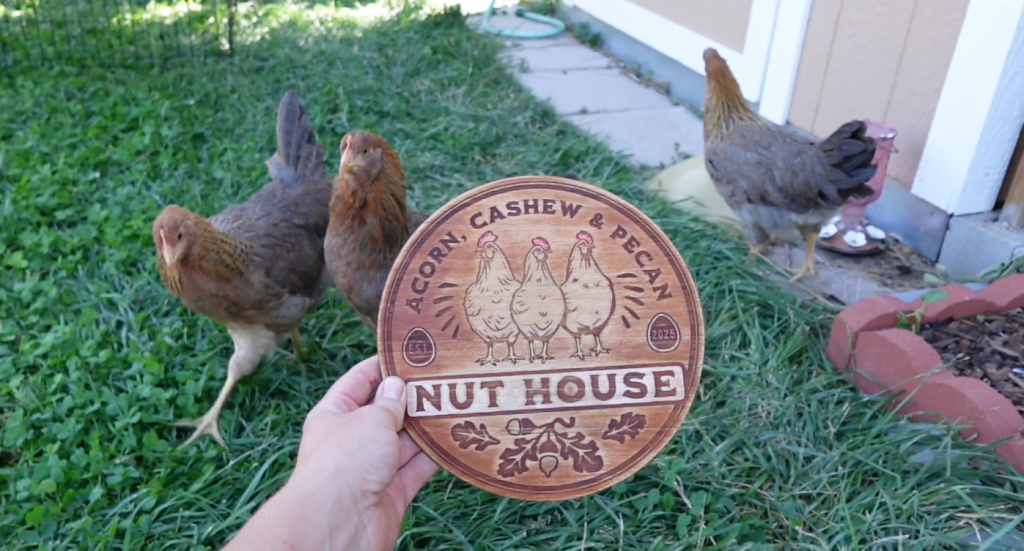
I need to make a sign for my chicken coop so let’s search for a good base. I’m not even sure what direction I want to take, which is an added inspiration bonus to this never ending library of templates.
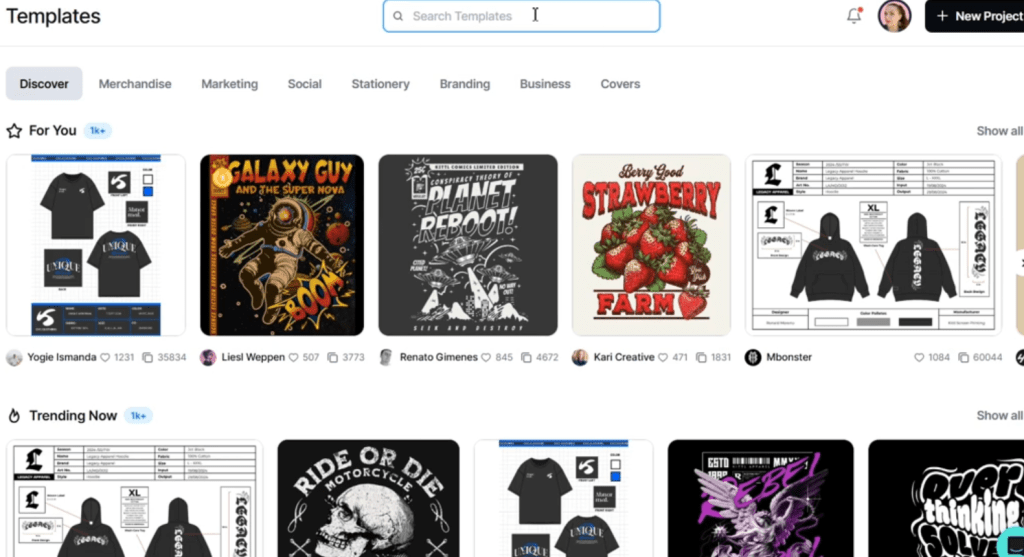
This Spring Fresh one looks like a great start! Now, so I don’t overwhelm you with the unending list of amazing features, I’m just going to quickly blast through turning this sign into my own creation.
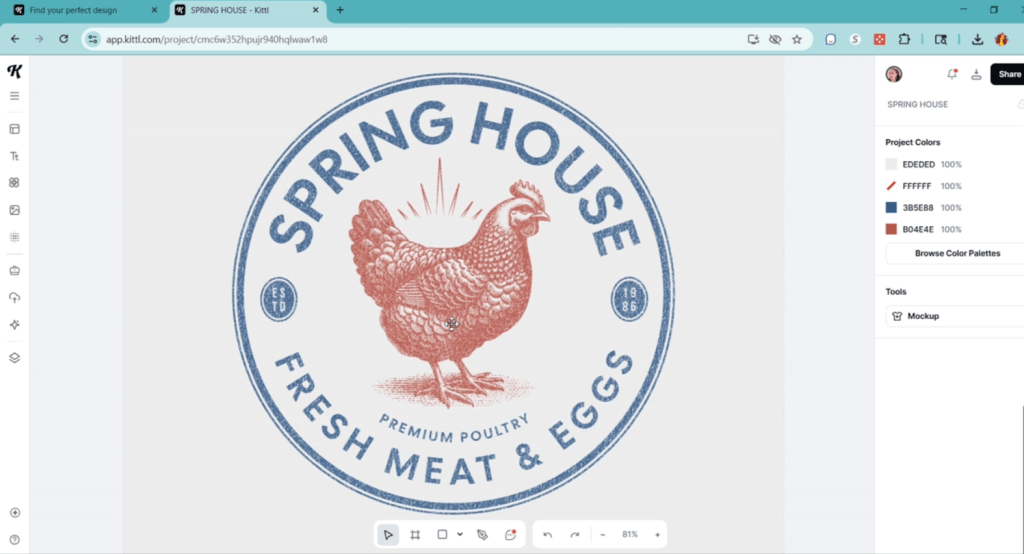
If you’ve used any type of designing software before, this bar on the right will feel familiar for you. Not too many options, so we can keep it simple.
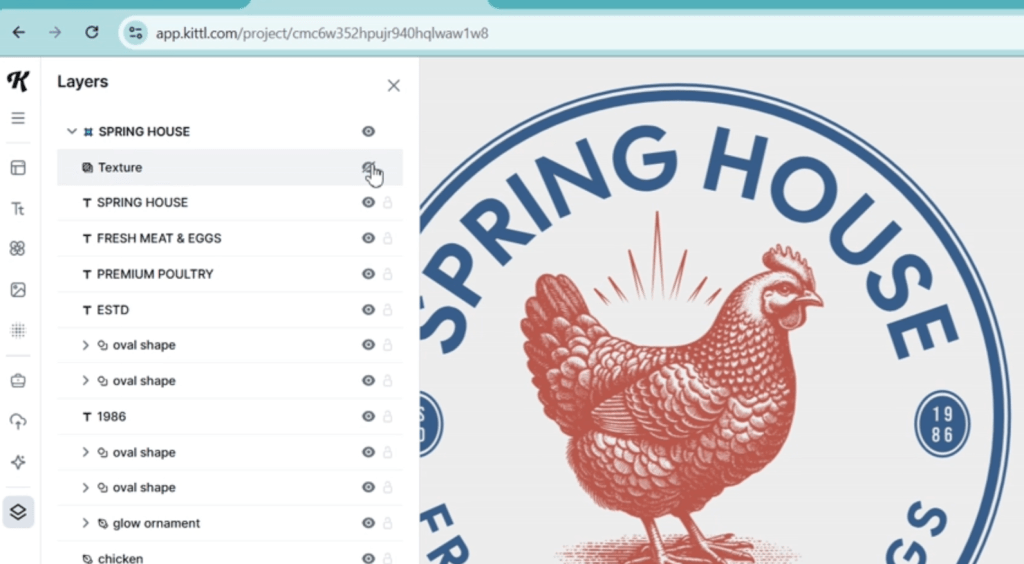
This design is made up of a bunch of layers, text and images which you can find in the layers tab on the bottom. To get rid of something fast, we can delete or click the eye to turn off the layer. Goodbye to this texture.
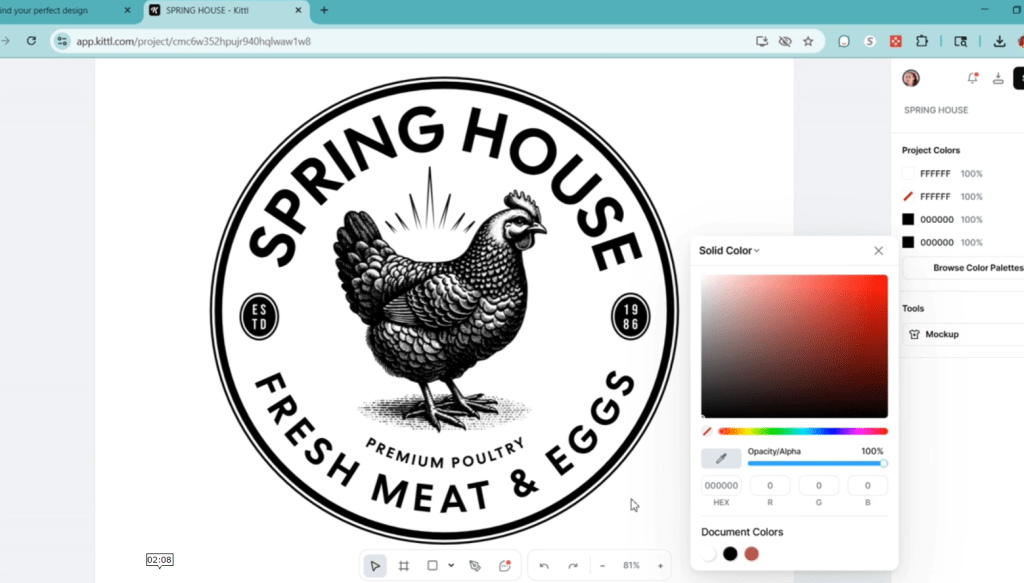
On the right hand side, I can turn all the colors to black and white, which is the way my laser is going to like it.
Now, this chicken is fluffy and cute, but let’s find one that might be a bit better for engraving. In the Illustrations button on the right, we can search for an image. If you thought their templates library was unending, just you wait. Here’s a nice looking chicken.
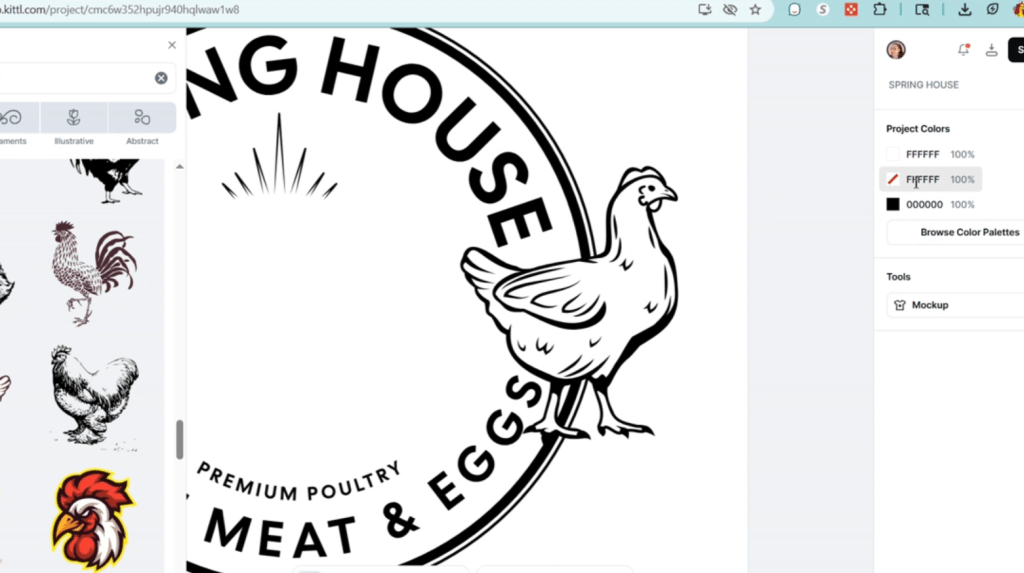
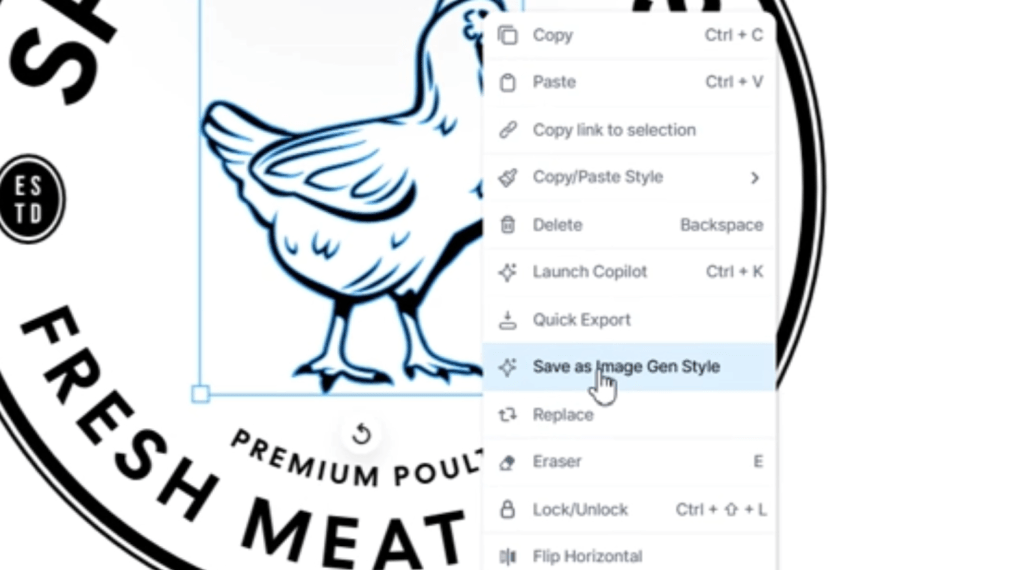
After I change the colors, let’s turn this one chicken into 3 chickens with magic! Ok, not magic exactly. Right click the image and you will see a list of things we can do to this image. Click on Save as Image Gen Style and watch the magic unfold!
Kittl AI will scoot out from the left and select Sets Generator.
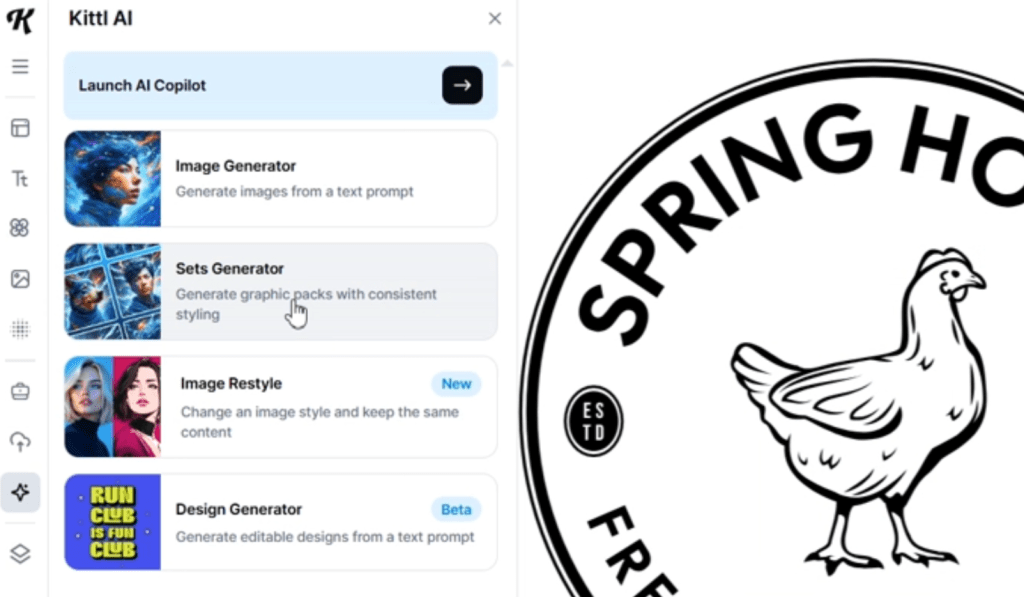
I’m going to type in a few similar prompts to generate 3 chickens in the style of this one. And a frog. always a frog, for luck, of course.
Abracadabra! Now we’ve got 3 chickens fashioned off of the original!
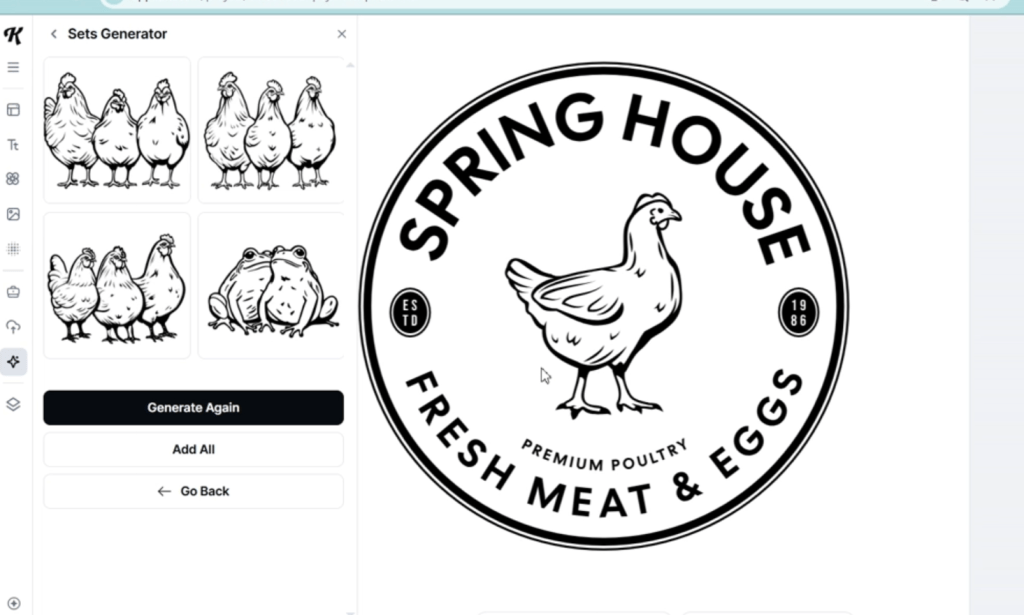
I told you it was magic. If you ever found an image, but you wish it we a little different, or a lot different, that’s where the Sets Generator comes in to save the day!
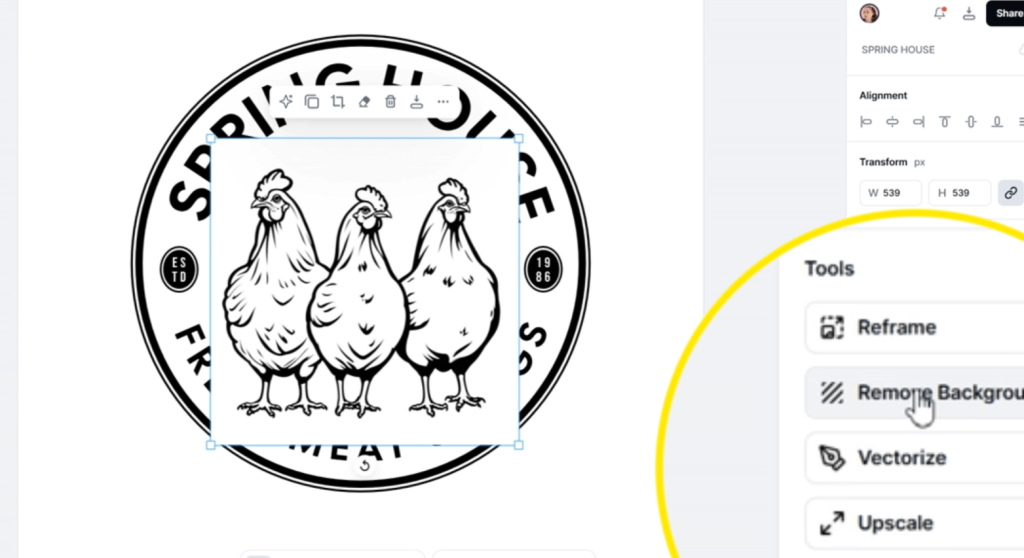
I use the Remove Background tool and we can set that right in there.
Now, let’s get this text sorted out. I found a nice font and actually want this “Nut House” to be straight across. There are a bunch of text formatting options on the right here.
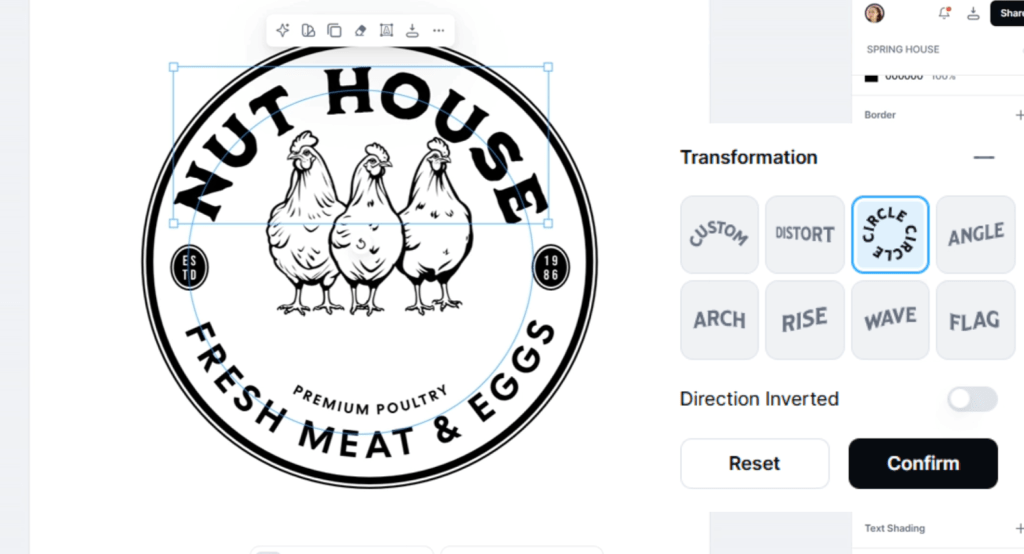
Selecting the toggle, set’s it to standard flat across style.
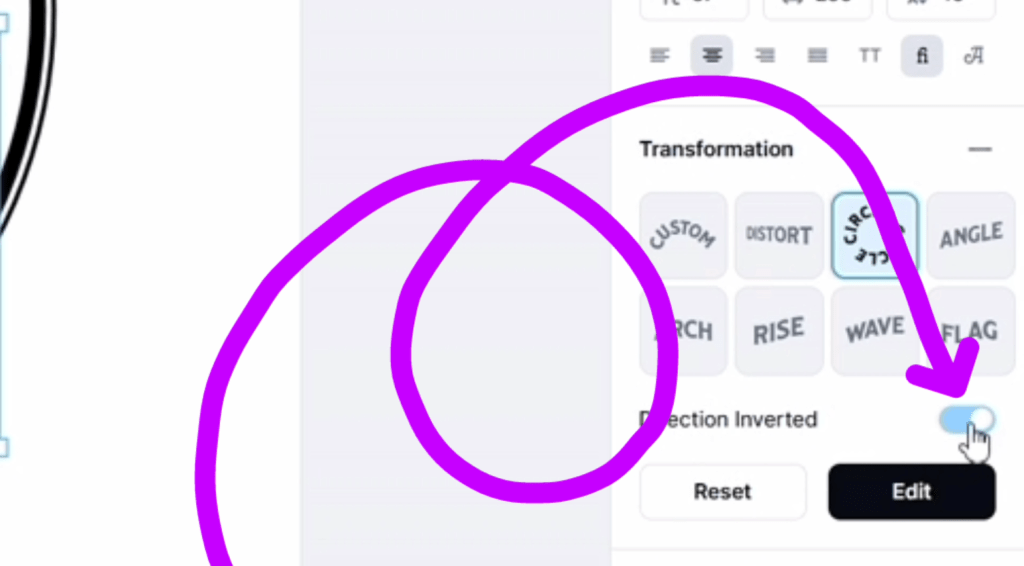
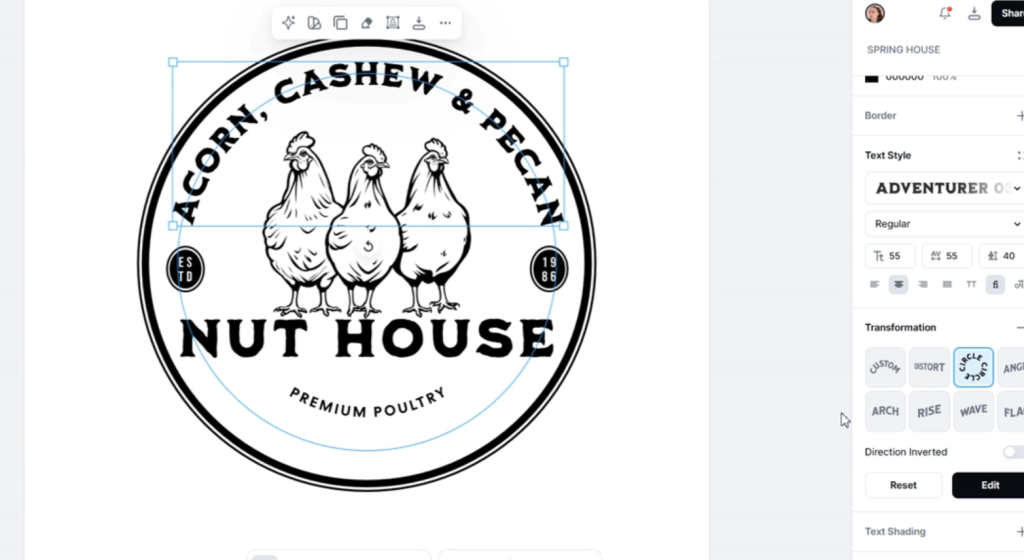
I’m going to click on the other text and I want it on the top, so I toggle this Direction Inverted button and chance the text to Acorn, Cashew & Pecan for my chickens.
Just a little adjusting of the font size and that’s done.
For these little circles, let’s turn them into eggs! Unlike any other online design program I’ve ever used, we can go in and alter the nodes manually! Double clicking on these circles will make the node points visible!
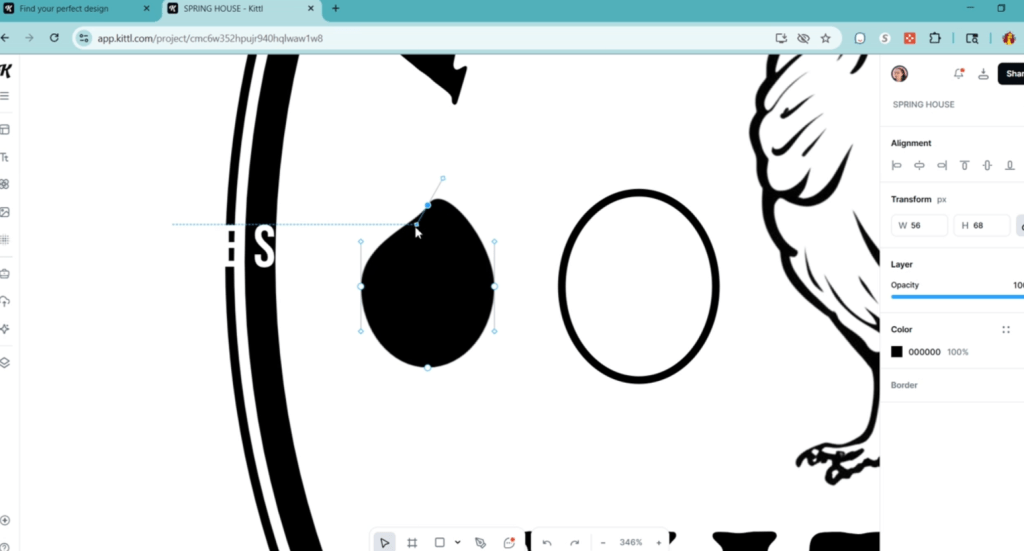
Now I just adjust it to my egg-y standards! Same with the outline!

I can group these together with CTRL G, which is helpful and fast.
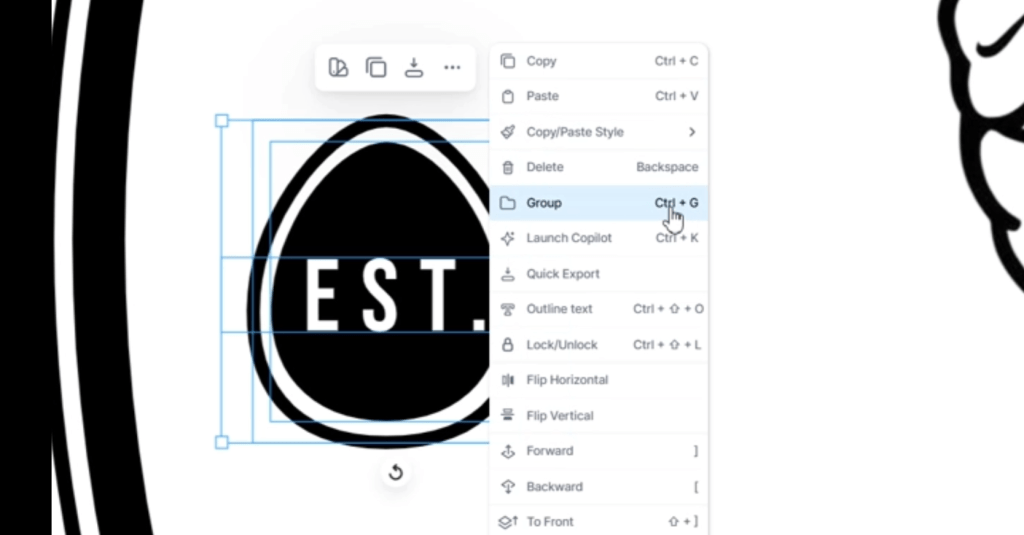
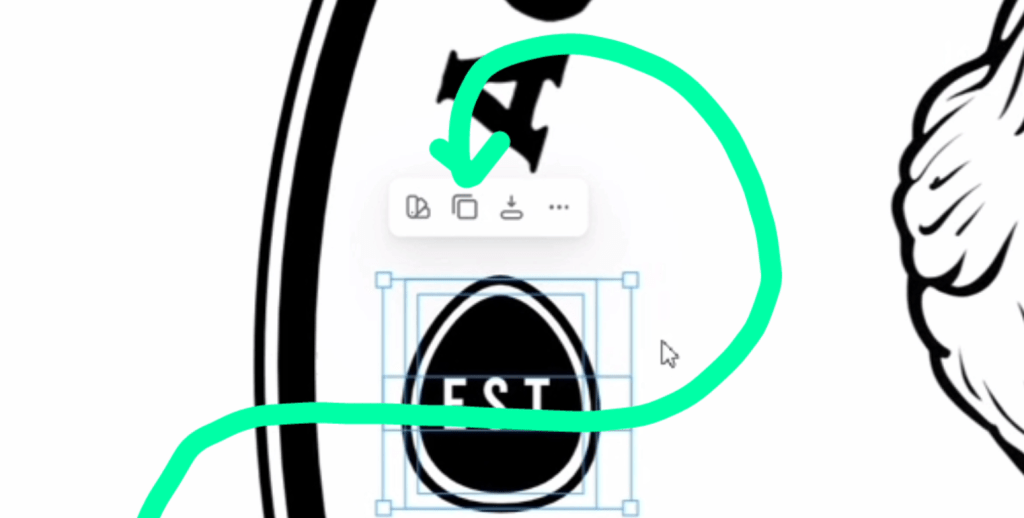
Then I can copy and paste it or click this button to duplicate it.
Ok! Almost done with this sign! It just needs a little flourish at the bottom. Again, to the Illustrations tab to find something. I found this acorn flourish but it’s not quite enough at the bottom here.

I duplicated it, double clicked it, and got rid of everything but this leaf!
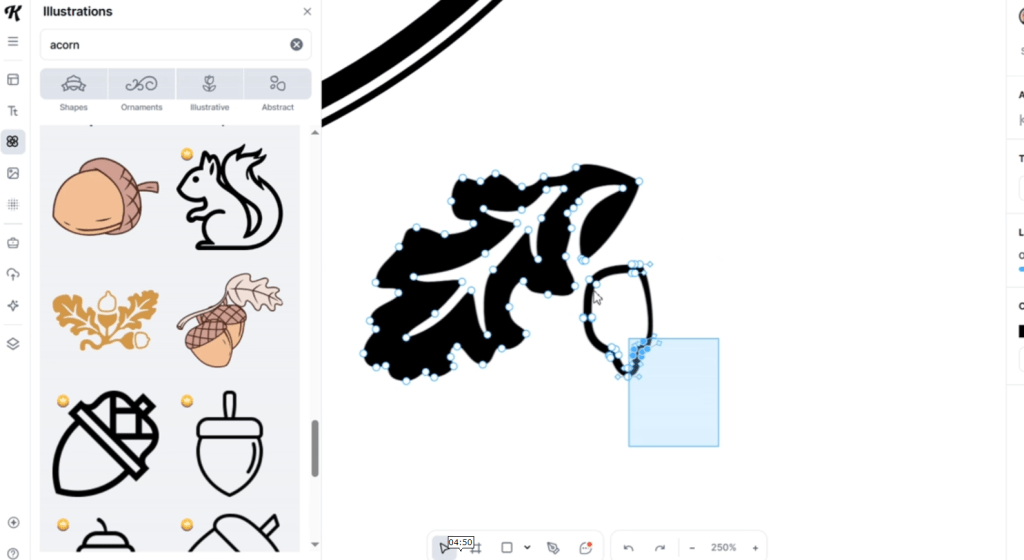
And I did it again and am left with this leaf! Right clicking these new images and selecting flip horizontal, I get them into place. I grouped them altogether so I can align them as one object.
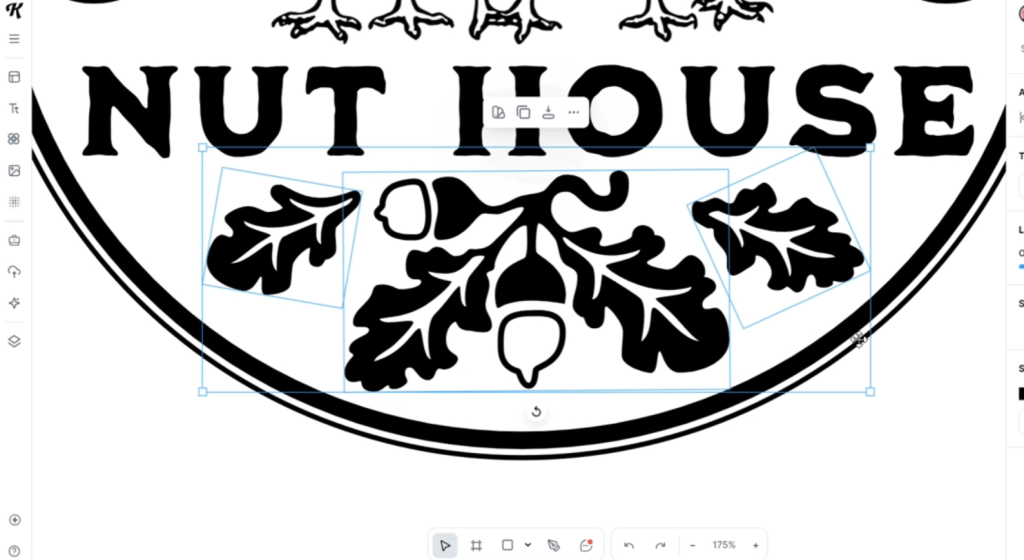
I just want a little border around the “Nut House” part, so we select a basic square under the Illustration Shapes Tab and we can round the edges easily.
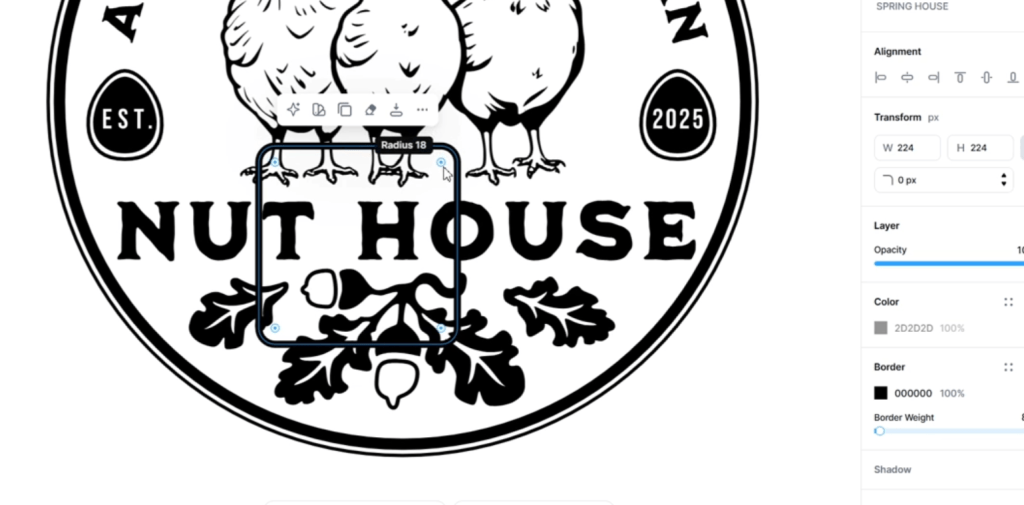
I want to hide the lines behind here, so I fill in the rectangle with white color, and going into the layers tab, we can make sure the text is above it.

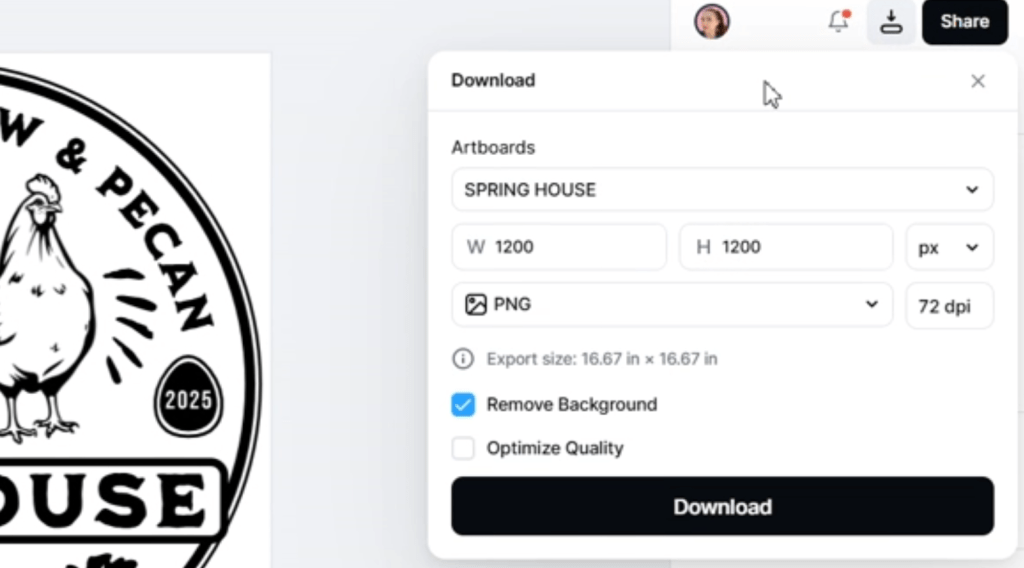
It just needs a tiny bit more of finagling and we are ready to save it to the computer! I’m going with a PNG.
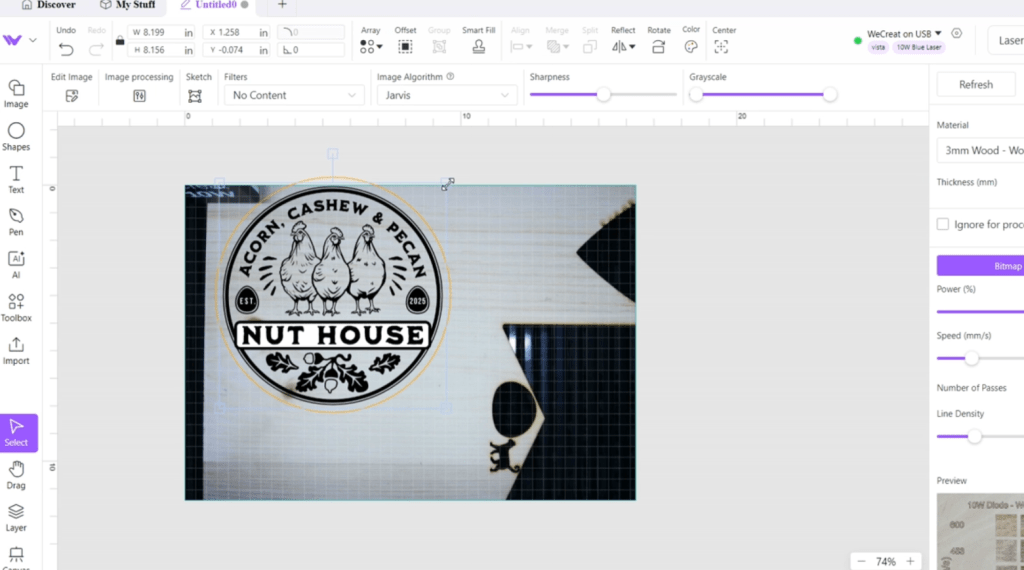
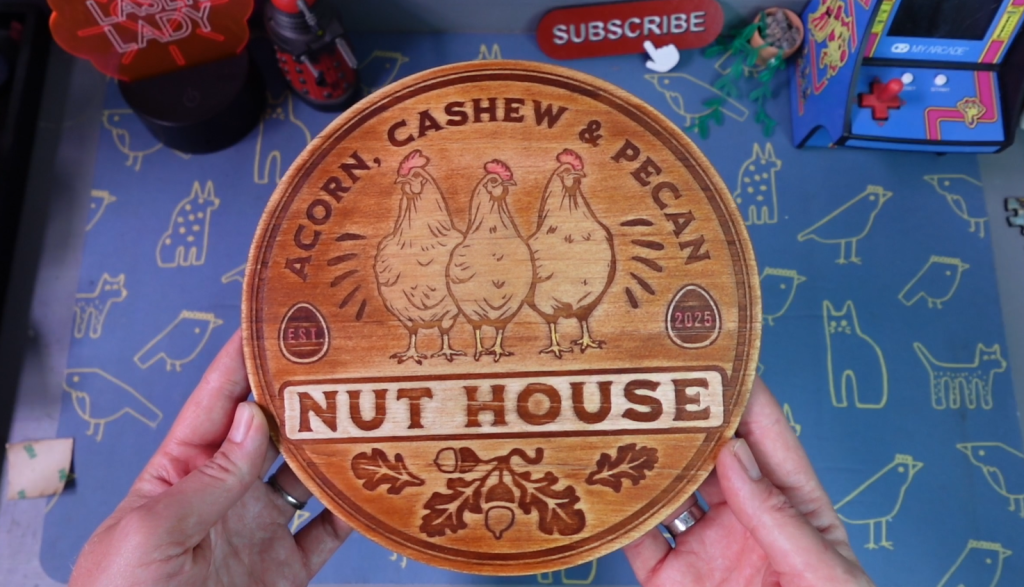
In my WeCreat MakeIt! program, it easily imports in. I don’t have a prefabricated piece to engrave this onto, so I drew a simple circle cut line around the image, aligned it and got it sent to the laser!
As all editing programs, there are a million ways to design, edit and save so it makes the perfect laser project for you.
But that was a lot! What if you want to make a design in less than 3 minutes?
Creating a Laser Engrave Design in Under 3 Minutes with Kittl.com
This is an easy challenge! All we have to do is go into the Templates and see what catches our eye! I have a cat convention coming up, so let’s look for some cat designs!
This on is great! I have a prefabricated wooden book box this would look great on! But! Let’s change the text! Easy Peasy!

I just have to come up with something to change the words to that comes off like a book title. Don’t forget to change the colors to black and white. A little nudge here and there with the text… and Viola!
Let’s save this and get it Laser Engraved!

I’m not gonna be surprised when this sells at that cat convention!

And I plan to sell it for more about 4 times the cost of one months worth of Kittl, which I do have a code for that will save you 25%, but wait!

This next feature is the one that is going to make you say something along the lines of Oooooh!
And that is-
How to Make Laser Cut Files with Kittl.com
Now, you might have noticed when I was saving these to my computer the last few times that SVG was a possible save option. YUP!
You can make vector cut lines in your files on Kittl!
Let’s find a shape that is already made like this fire. All you need to do to make a cut line is get rid of the color by clicking on the eye by the color.
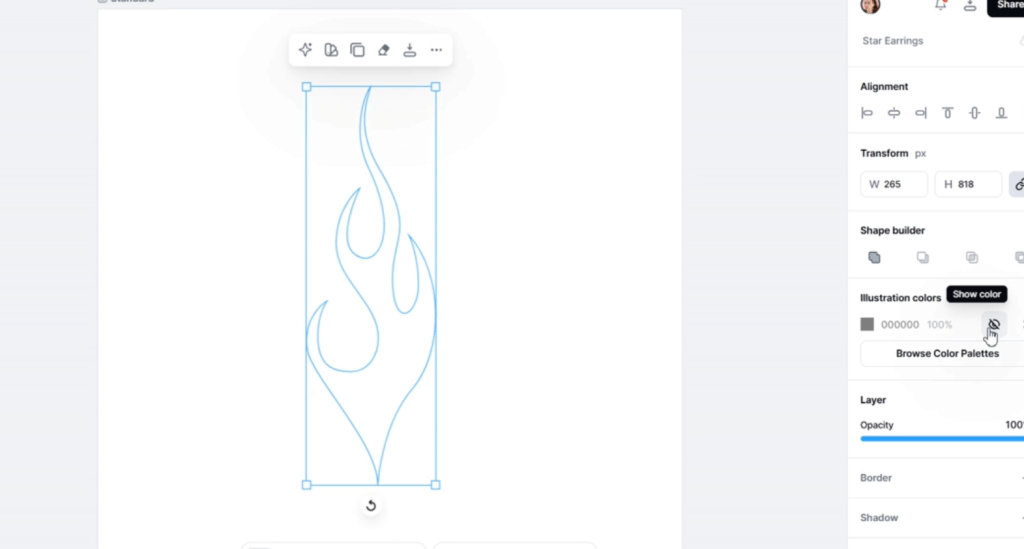
The shape remains, even if you can’t see it on this white background. Save as an SVG and open it up in your laser program.
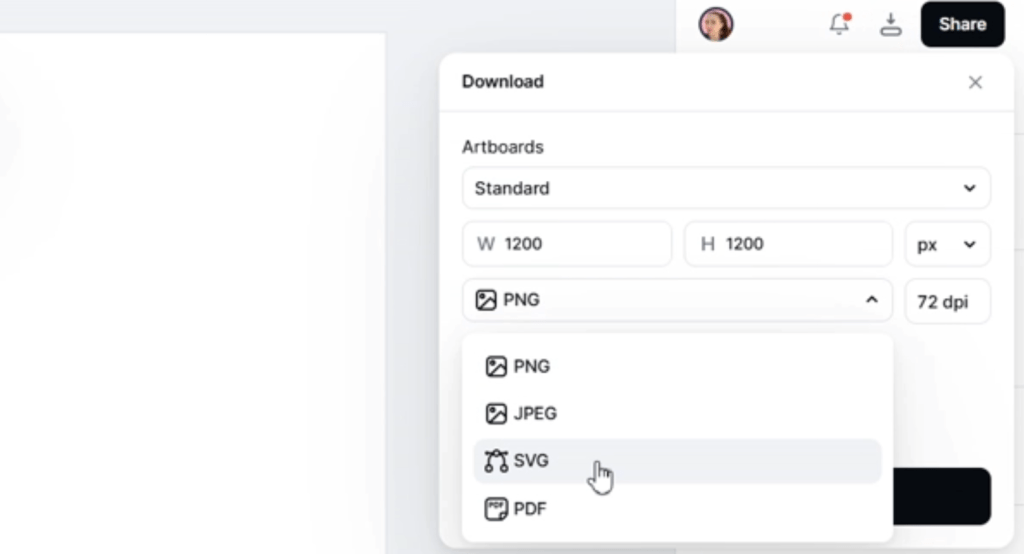
I’m using the WeCreat MakeIt! program, Lightburn would also work.
Import your svg and set it to cut engrave, whatever! Bam!
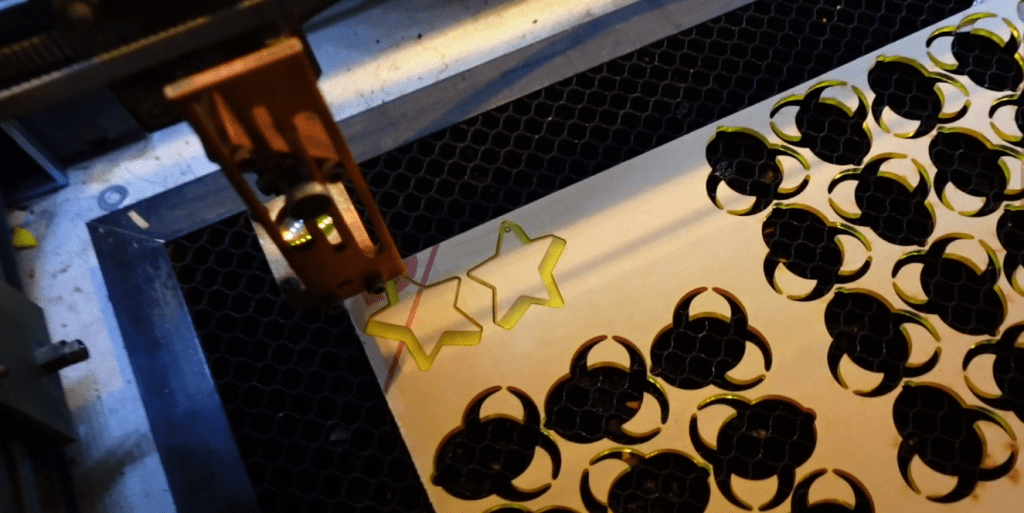
You can include engraving shapes, too! Let’s make some star earrings. I found this star shape and thought those would be cool!
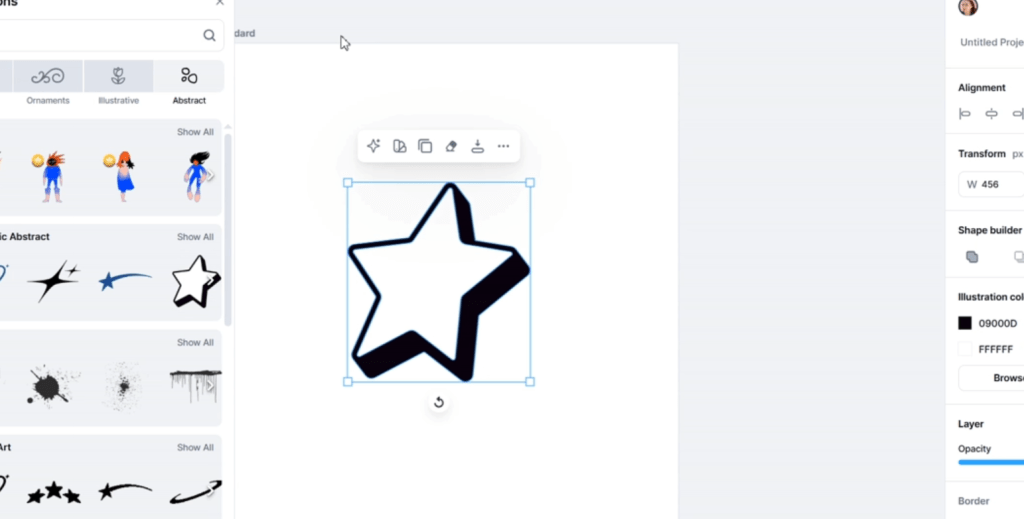
The black and white shape will be the engraved layer. I duplicated it and got rid of the middle star for the cut line.
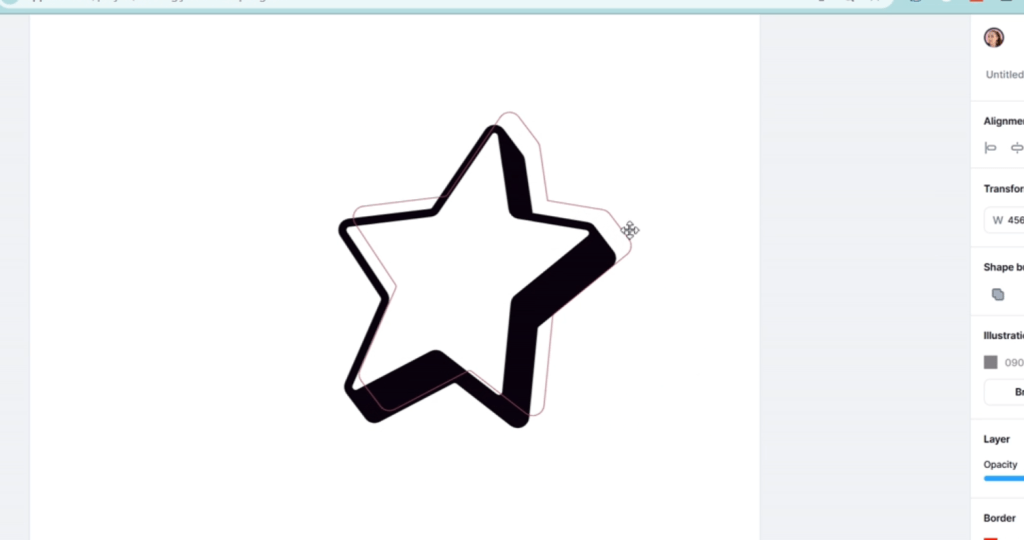
I even put in little circles for the hooks to hang off of!
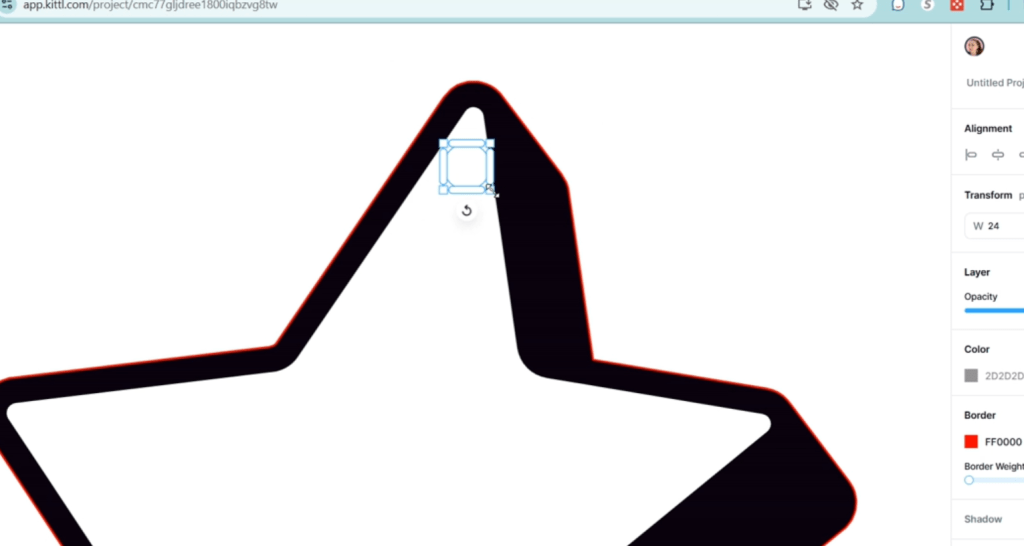
Depending on you laser software, it may need a little more tweaking, like for my picky CO2 laser.
Is Kittl Right for Your Laser Biz?
I have tons of projects lined up from the massive inspiration and templates Kittl has to offer!
The text editing features are unmatched. Just imagine how easy it would be if you were to make a personalized template, offer custom laser engraved welcome signs for instance, and just need to go in there, change the text and wham bam thank you ma’am! Cash in the bank.
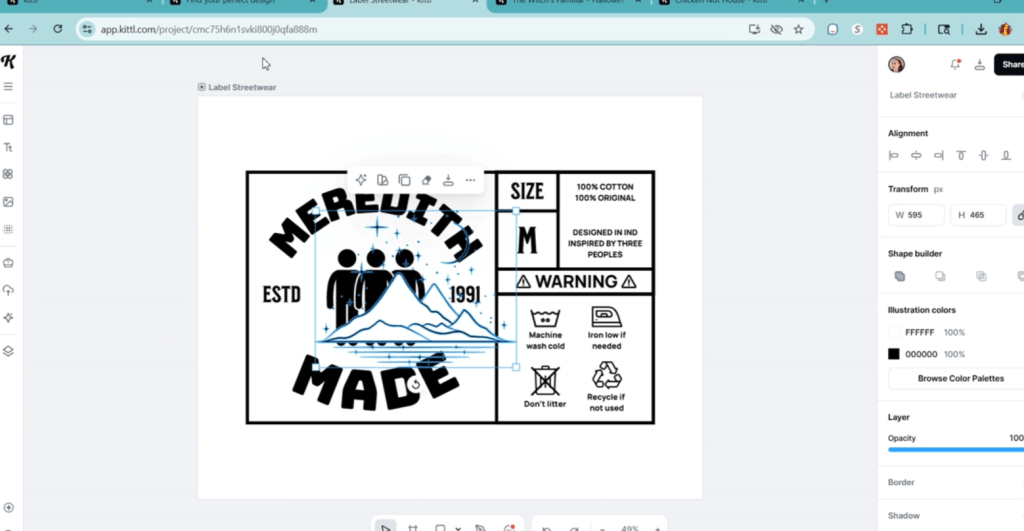
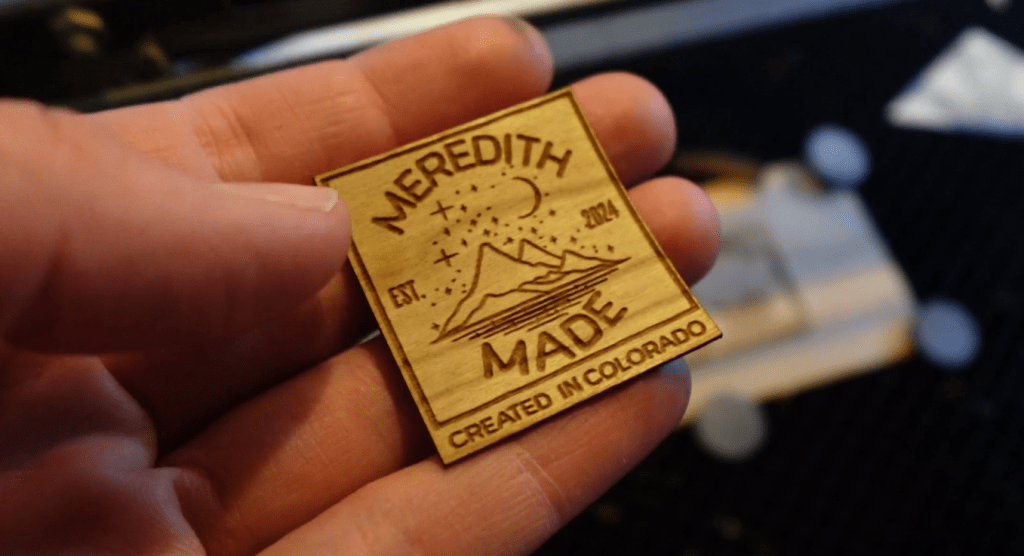
Plus! The more you use it, the easier it gets. What if the laser thing fizzles out for you? Bam, you can design t-shirts! What if you don’t want to make t-shirts? Bam! You can design Band Posters! Custom Birthday Invitations! Family Reunion tote bags! Tattoos, even! Heck! You offer your graphic design services to other business for $1000 an hour.

Honing in on a new skill, and going about it in the easiest of ways, could very well skyrocket you into achieving your Laser Business Dreams, or even open up a whole new life path you didn’t even know you needed.
Use my code LASERLADYYT to save 25% off all Kittl Plans! I promise, there is a plan for you and there is a design just waiting for you to make it your own.
Happy Crafting!
 Learn with Laser Lady
Leave a comment