
There are a lot of steps, so take your time & take breaks.
Step 1 : Download the Laser Files
First step is to Download the Laser Cut file I have meticulously made for your enjoyment! You can download the file HERE.
✨ Supplies for this Project
⇢ Acrylic or Wood : I recommend Color Board MDF in Red, Green, Tan, White, Blue and a Specialty MDF in a Light Neon Green Color. This could easily be made with color acrylic, or paint your own wood pieces. Any uniformly thick material will work with this laser file.
⇢ PVA Glue – Wood Glue or Elmer’s Extra Strength Glue works well with wood products. If you are using Acrylic I recommend Weld-On Cement.
⇢ Tweezers
⇢ Masking Tape
⇢ Various Paints to embellish engravings (Optional)
✨ File Download for this Project
⇢ Legend of Zelda Link to the Past Hyrule Map
I recommend you cut out ALL the color layers before you start to assemble this craft. After the 1st layer, more and more colors come into play, and it’s convenient to have everything ready.
✨ Helpful Tips
⇢ A bowl of some sort helps keep the small pieces together.
⇢ Use masking tape to hold the little pieces together after you laser them, so they stay together before you lift them out of the laser.
⇢ Just like building legos, it is helpful to keep the same color pieces together.
1st Layer – Blue Layer
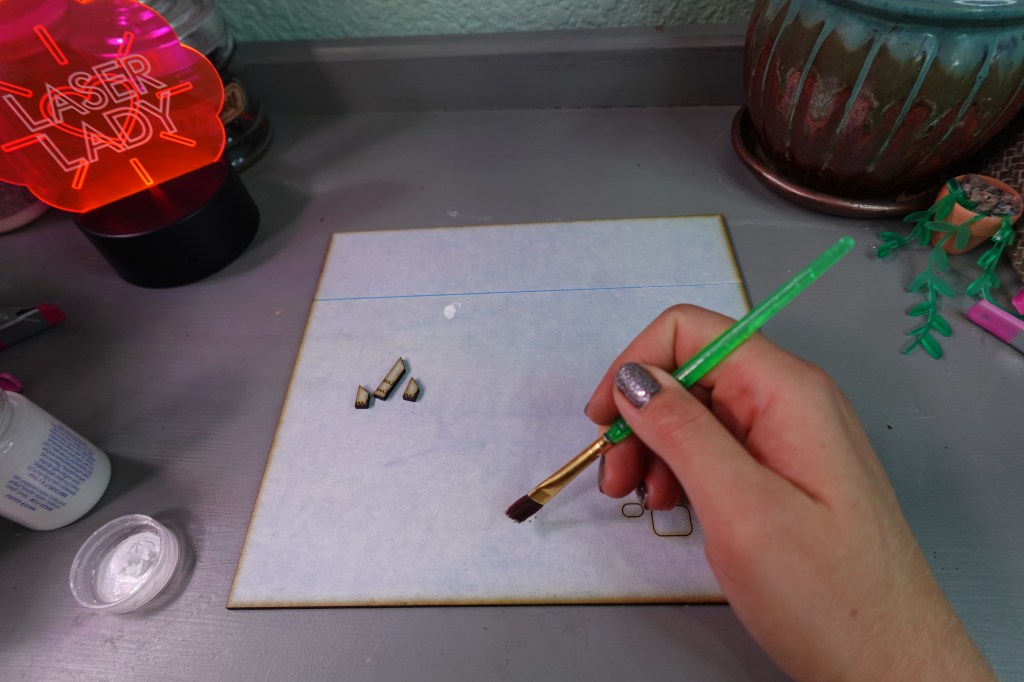
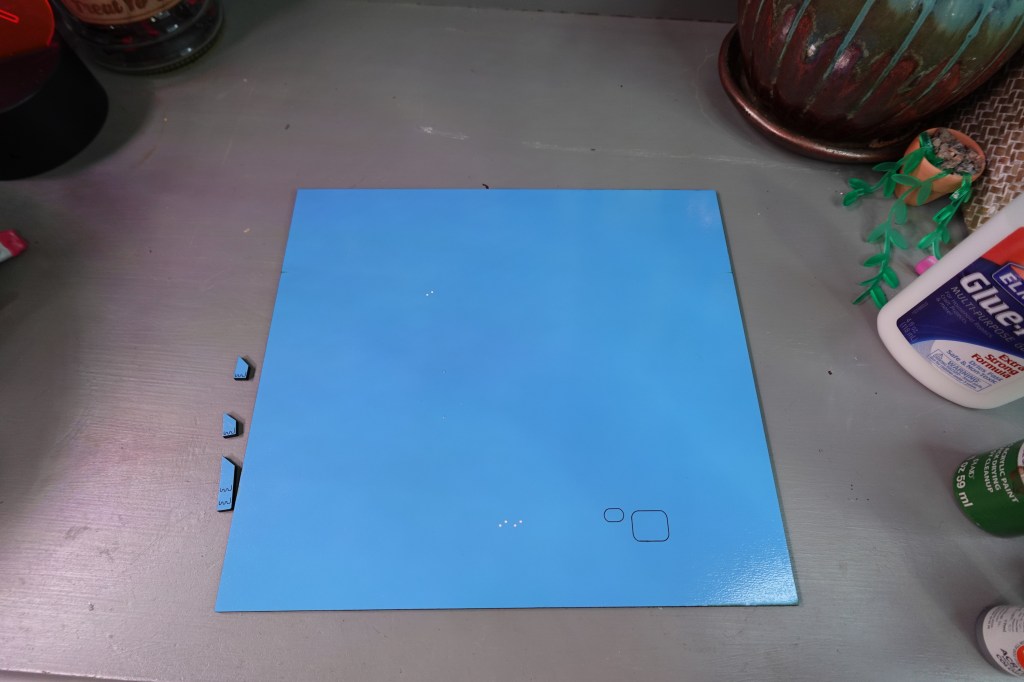
Once you have the bottom blue layer cut out, I like to paint in the little engraved squares with white. This will show through and be little lakes in the map.
2nd Layer – Light Green Layer
Make sure you keep these 2 pieces from this cut. The rest of the cut out pieces will not be used.
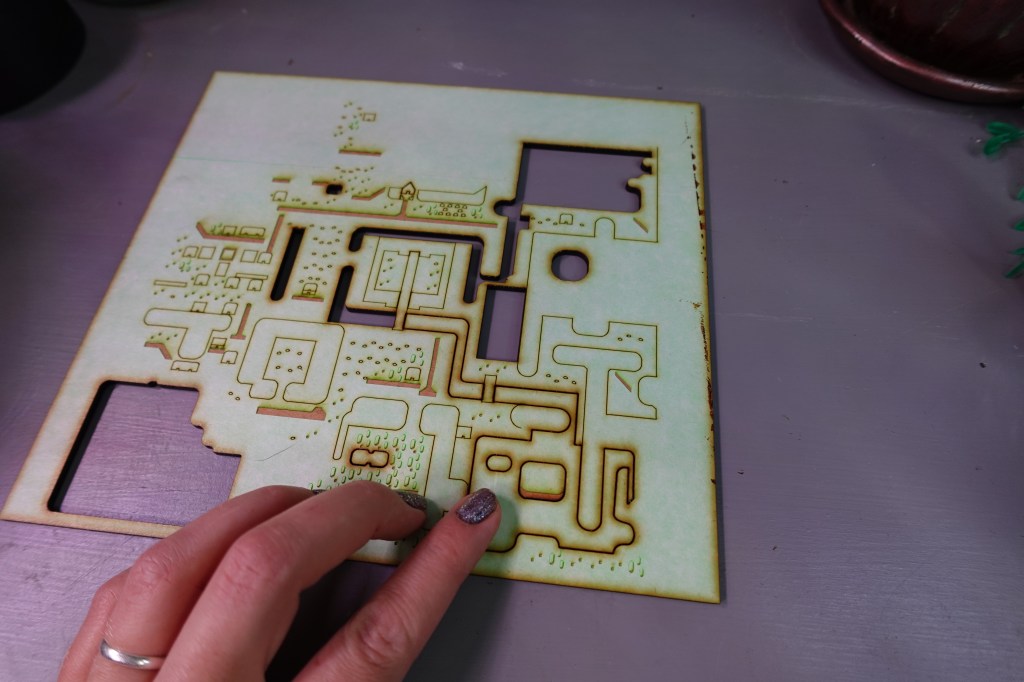
If you would like the embellish this piece with painted areas, I suggest the areas that have been vector engraved (low level cut line). You should be able to easily peel off any masking and paint these areas. I did the sidewalk areas and graveyard stones a gray color.
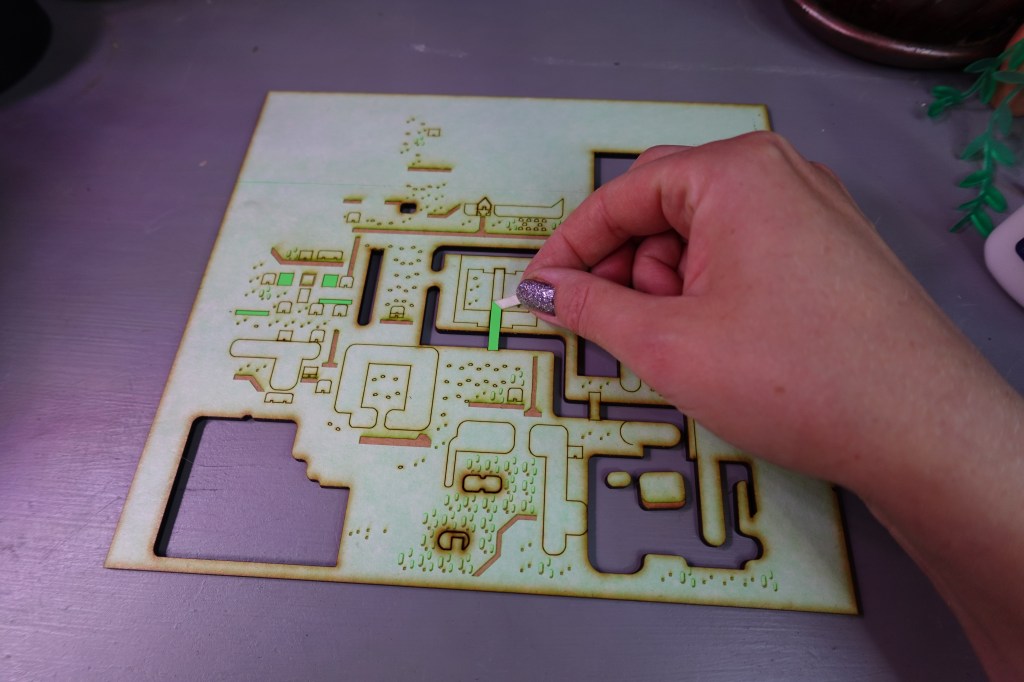

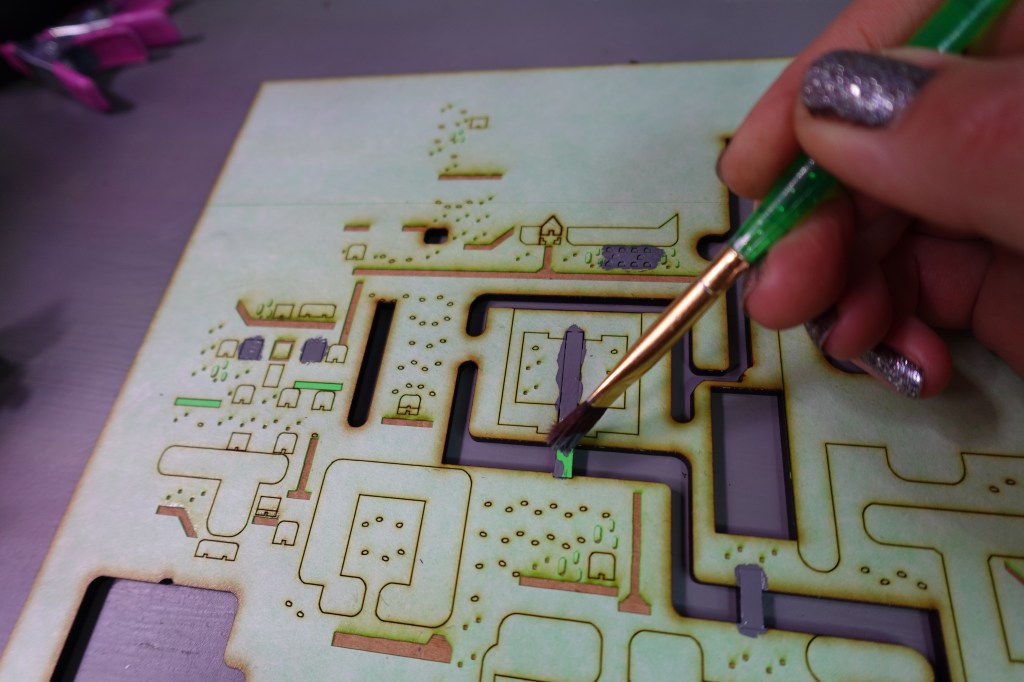
Once you have painted the areas you would like, it’s time to glue all the pieces for this 2nd layer onto the 1st layer (blue).

I find little clamps really help keep things in places as it dries.
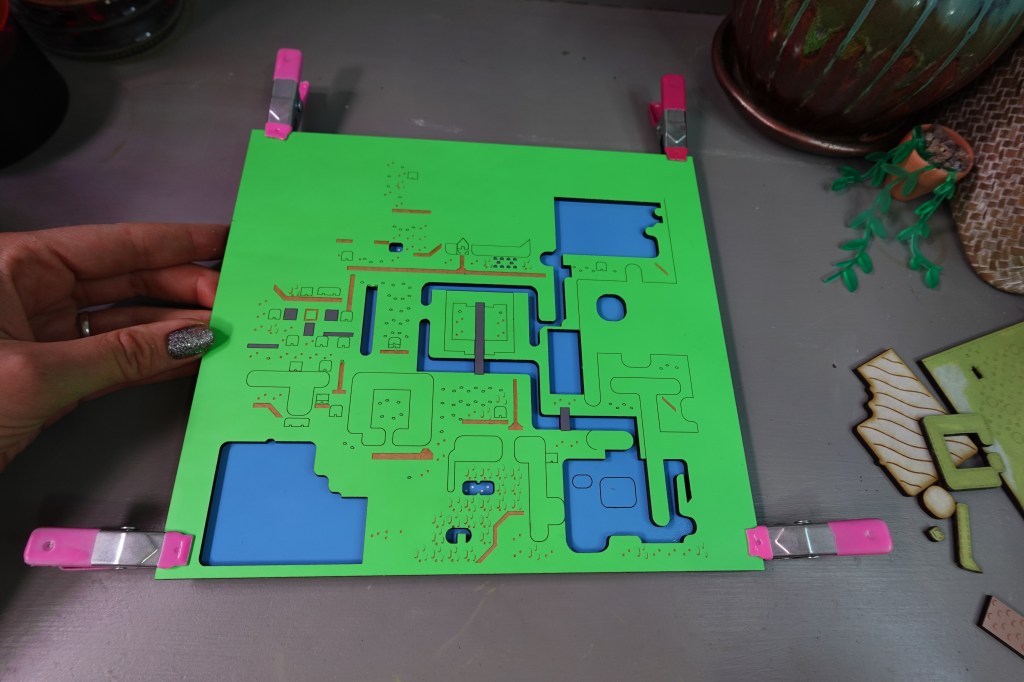
Make sure you alight the green piece to show the white painted squares through the right holes. It should look something like this. 👆
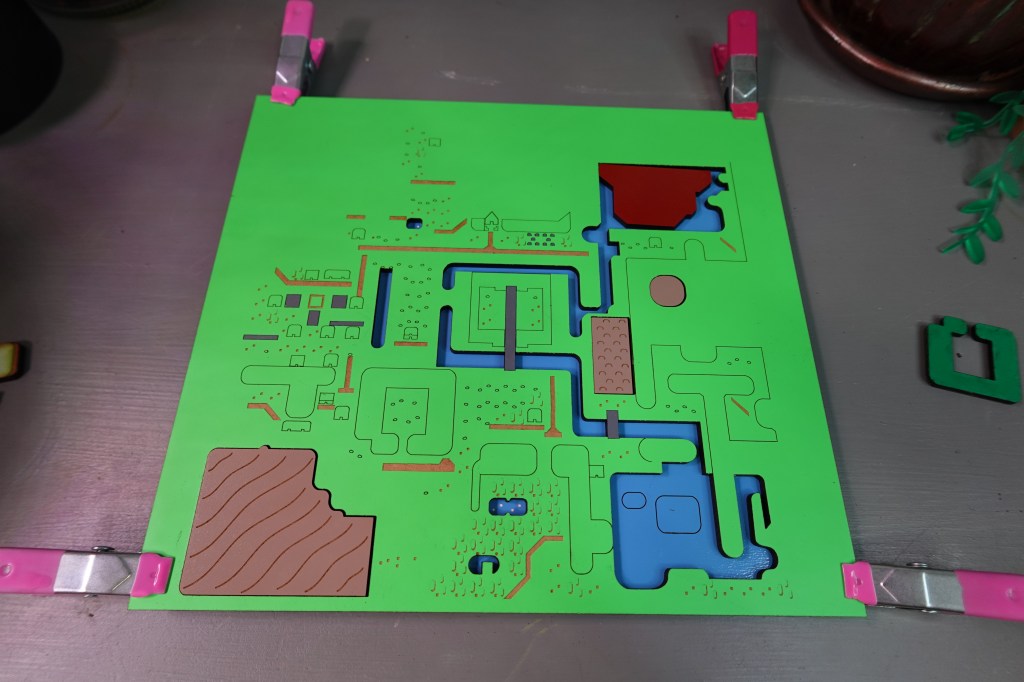
Find these matching Tan pieces (sand in bottom left corner, dunes in middle right and rounded square in left upper area) and Red piece in upper right corner). Everything should still be flat at this point. The 2 light green pieces we saved from the initial cut will go in the lake in the bottom right corner (not pictured).
Layer 3 – Dark Green, White, Red & Tan
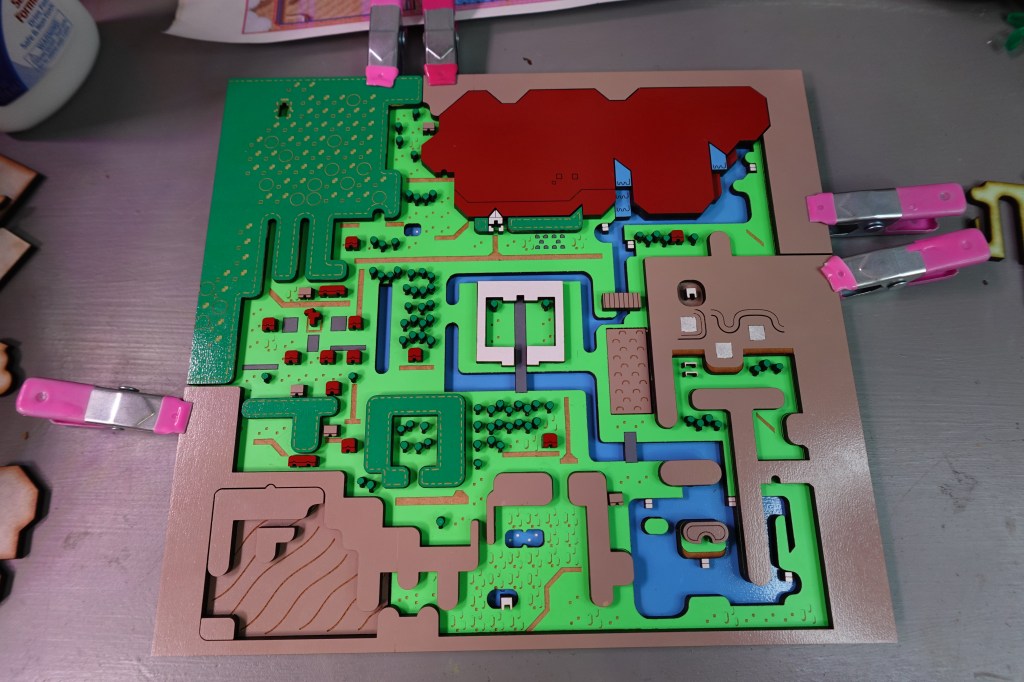
There are a lot of steps on Layer 3. Please refer your piece to the pictures to make sure you don’t miss any little bits.
First, I painted in the etchings of the Dark Green layer in a lighter green paint.
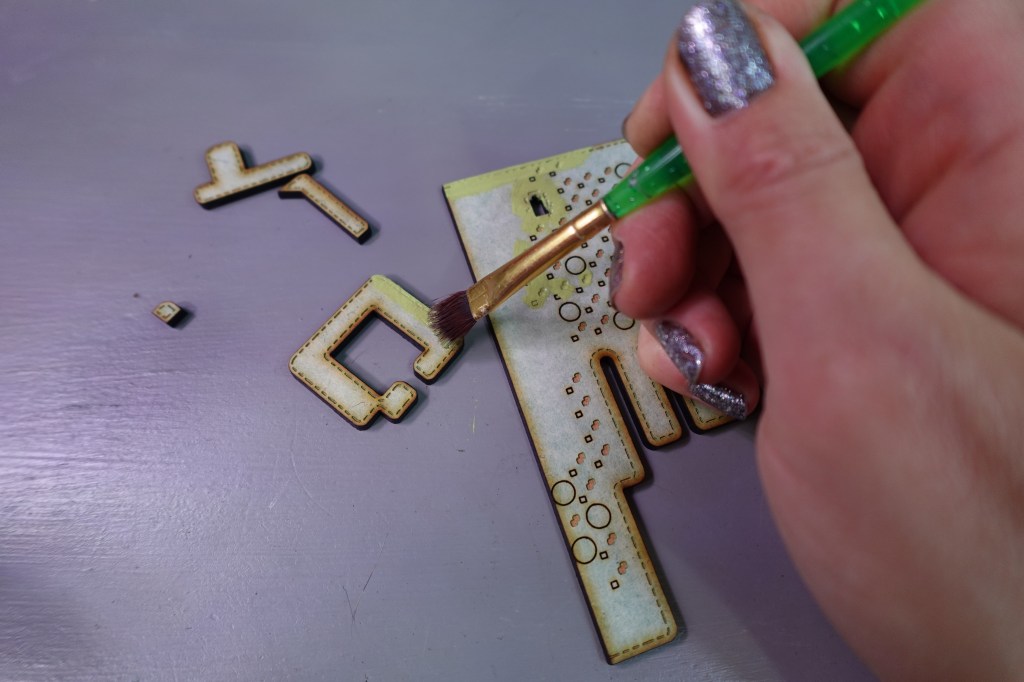
There will be yellow vector etch areas for pretty much everything on this 3rd layer. Refer to the Map Printout, included in the download, for color reference and placement.
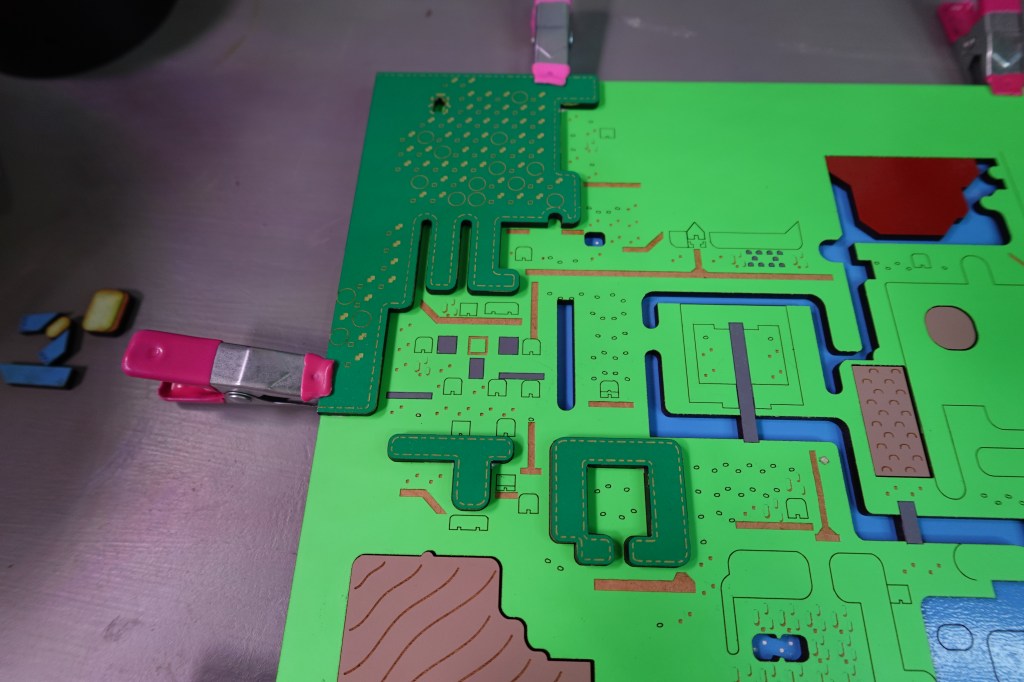
These 3 desert pieces don’t have outlines, but go in this placement.
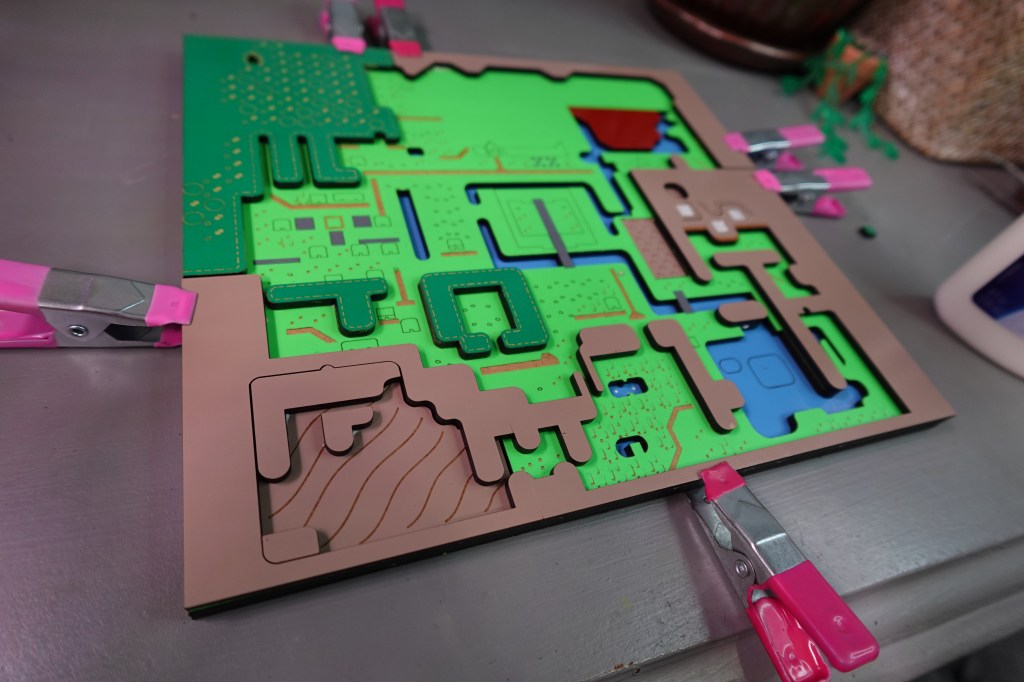
There are extra pieces in the file for exceptionally small pieces, like the ‘L’ shapes by the church, trees and a few houses. Note the placement of the white hut inside the desert area in the far right middle area and swamp area.
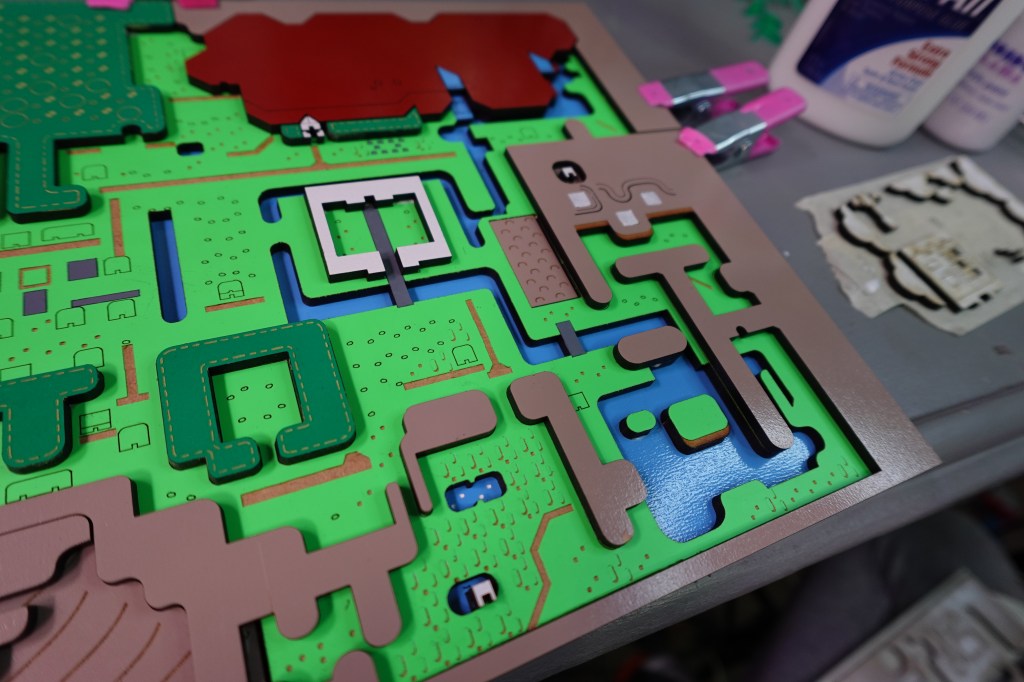
The little white docking ladders in the water and river areas are all shown in this image. There are 7 in total on the map. The tan bridge above the dunes to the right side of the castle is the widest of the 3 bridges.
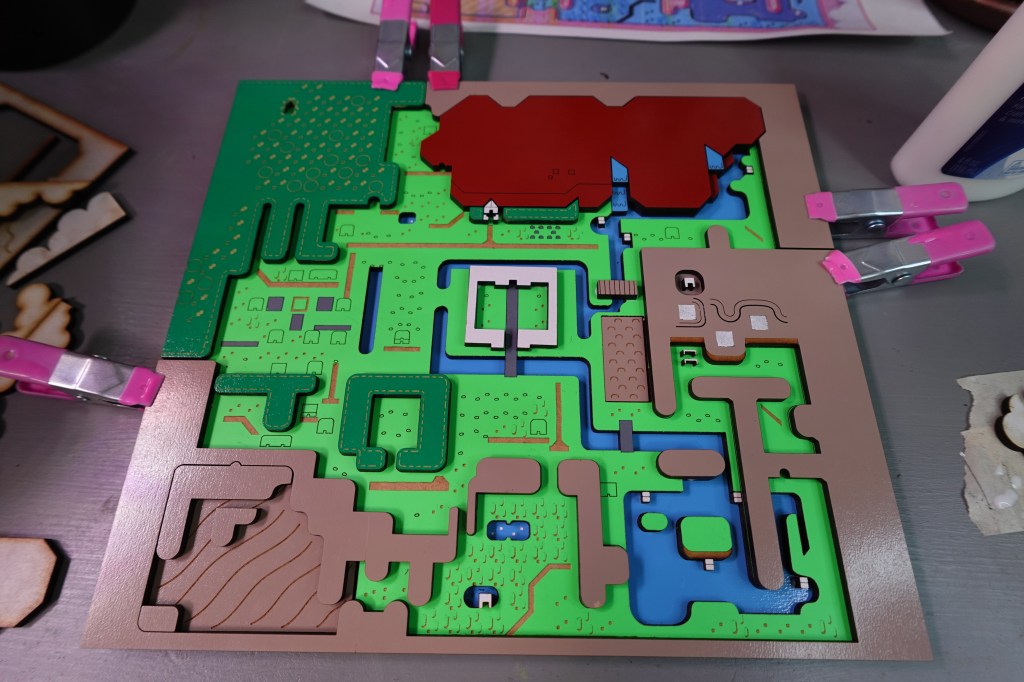
Small pieces, like the houses and trees are easily placed with tweezers. Make sure the 3 waterfall pieces are in place. The 2 little waterfall pieces are interchangable.
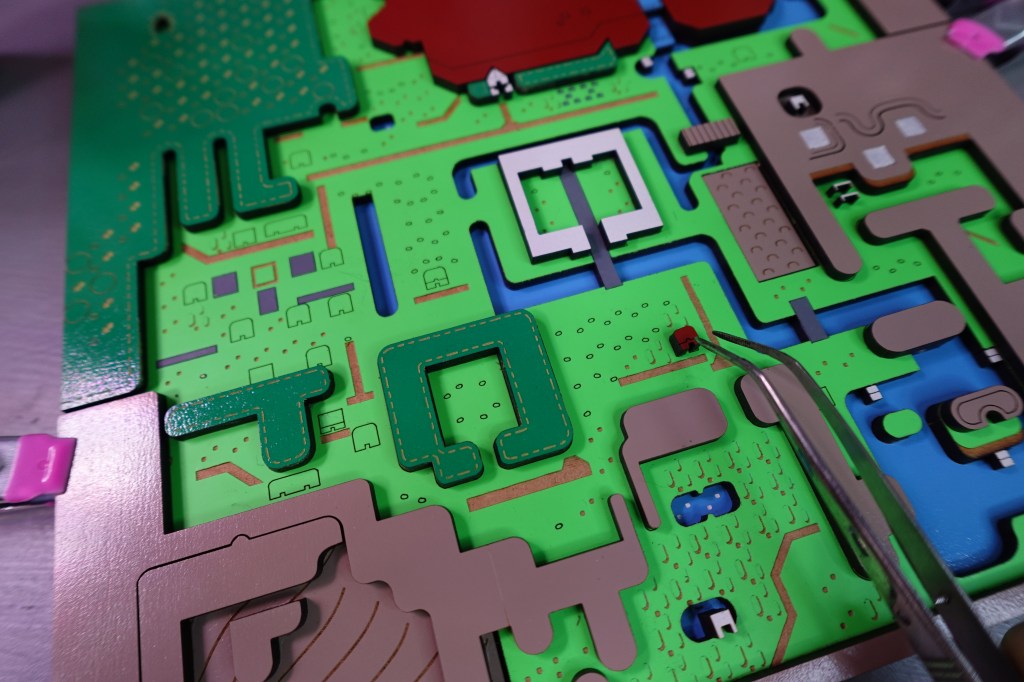
The red houses and tan houses have different shaped outlines on the map, you’ll find these easily. The red bird shape goes in the engraved square area inside of the town.
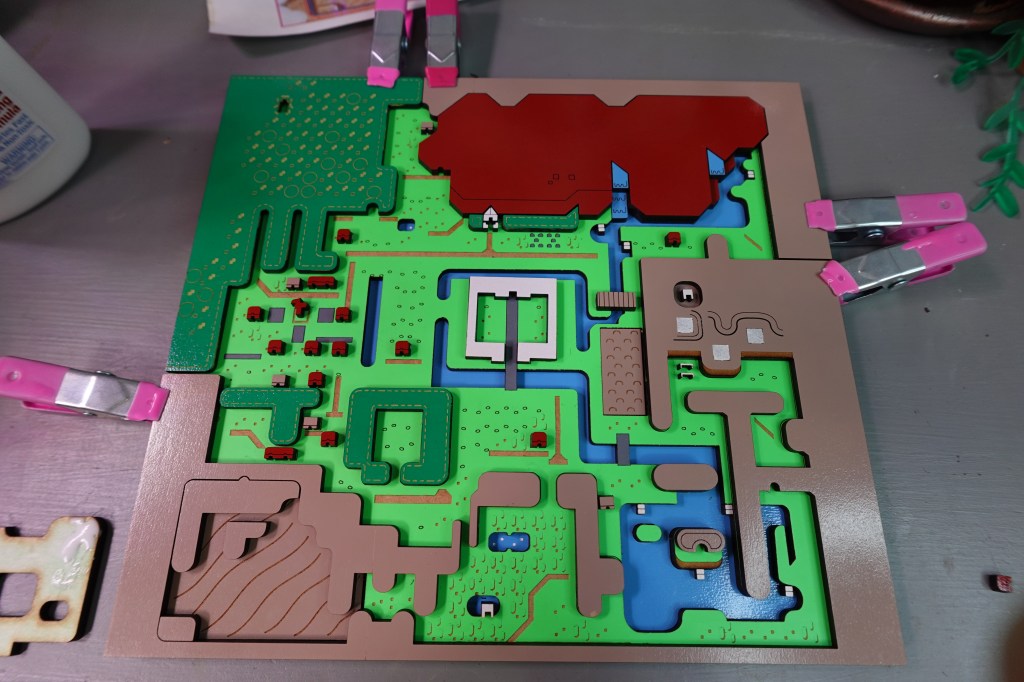
Settle in, folks. These little trees are going to take some time. Tweezers are helpful with these. The little ovals are the tree areas. There are about 75 trees, I lost count… There are 2 sizes of trees, but don’t worry about where they go specifically. Also, if all goes well, you should have some trees leftover.
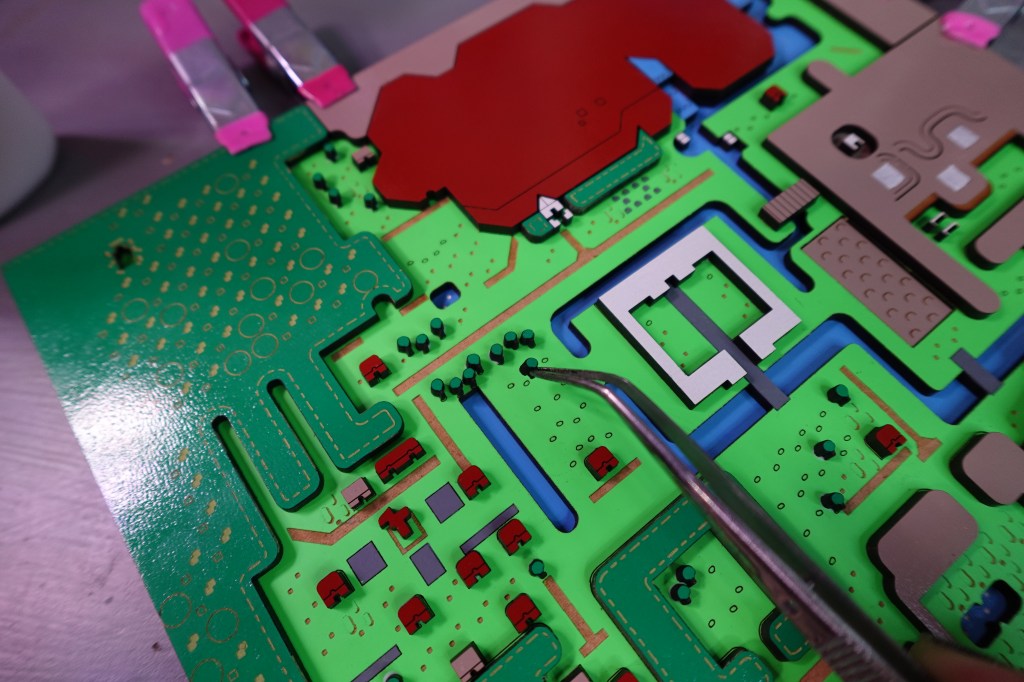
Compare your piece to this picture before going on the the next level.
4th Layer – Red, White, Tan
The hardest part is done! This next layer will have a few more little parts, like this dungeon below, underneath cloud parts and red mountain parts.
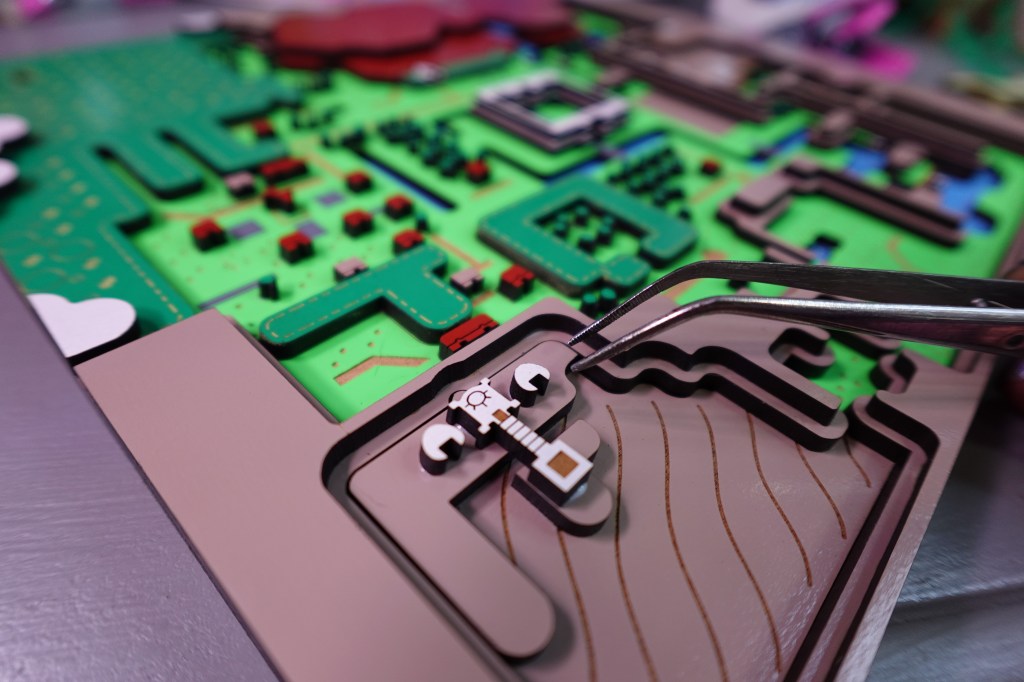
I am using the Tan Separated Pieces for this tutorial. You can see the cuts between some of the pieces. Make sure they are lined up, and in the correct formation. The Whole Piece Tan pieces will be a bit more obvious where they are supposed to go.
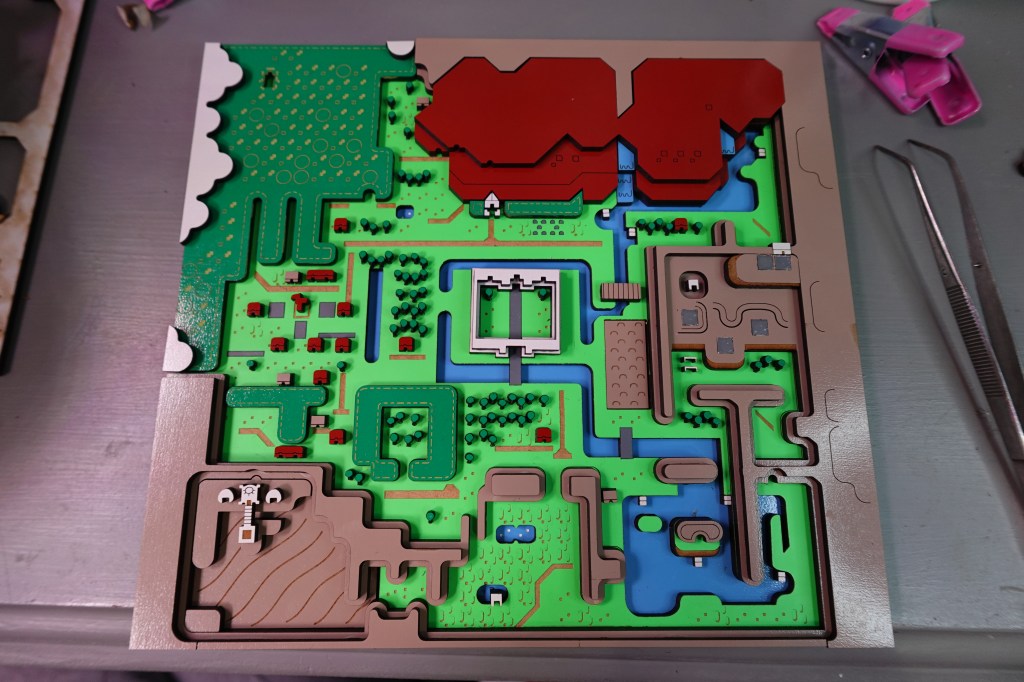
The smaller white cloud pieces hold up the main cloud pieces, which are bigger. The smaller cloud piece locations can be seen below. Compare your entire piece to the image below before continuing to Layer 5.
Layer 5 – Red and White
We are nearly done! How are you? Do you need water. Hydration is important, especially if you are battling bosses across Hyrule.
Don’t forget this little piece on top of the castle.
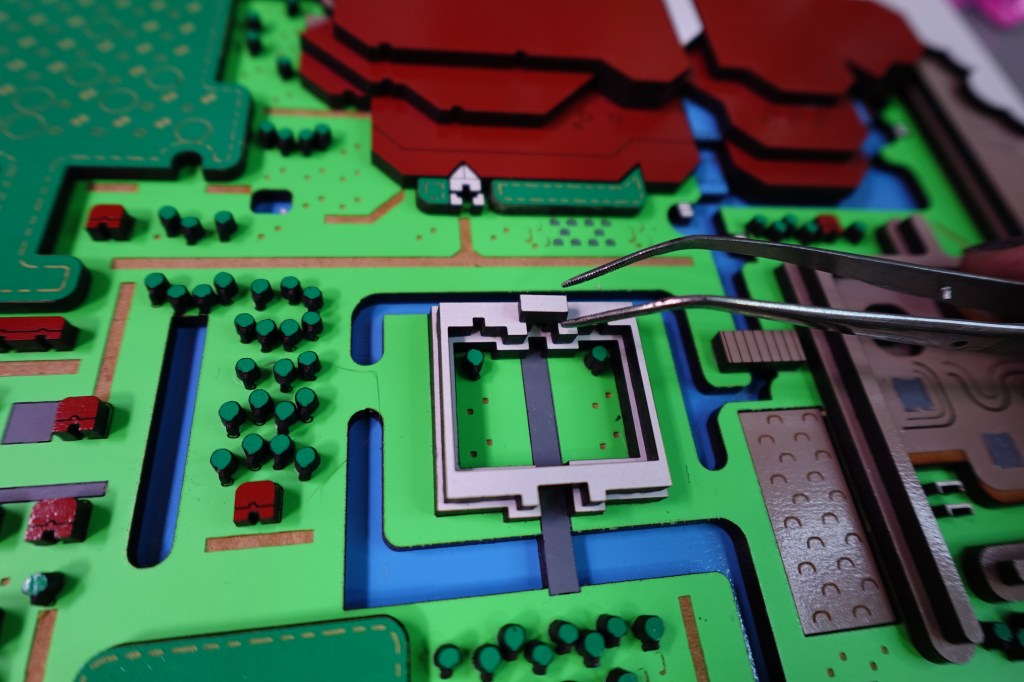
The bigger white clouds go one top of the tan and smaller cloud layers on the left side as seen below. Compare the cloud shapes to the printout so you don’t mix them up. (But if it looks good, who’s going to notice?) 😉

Do note how the red mountain layers are stacked. They should taper up the mountain. I used a black oil paint pen to color in the details of the mountain castle, it really makes the color pop.
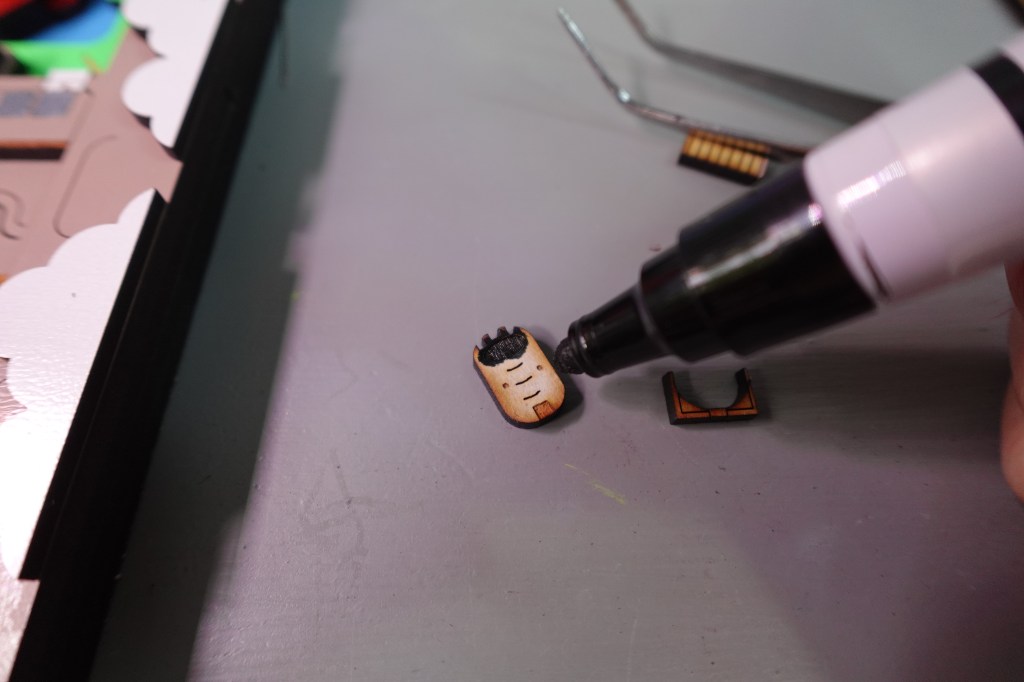
Once you have the mountain castle and bridges places, you should be done! The broken bridge pieces are on 2 different layers. That’s probably why it broke, haha.
There will be a few little piece left over, but compare to these images to make sure you didn’t accidentally miss some little detail.
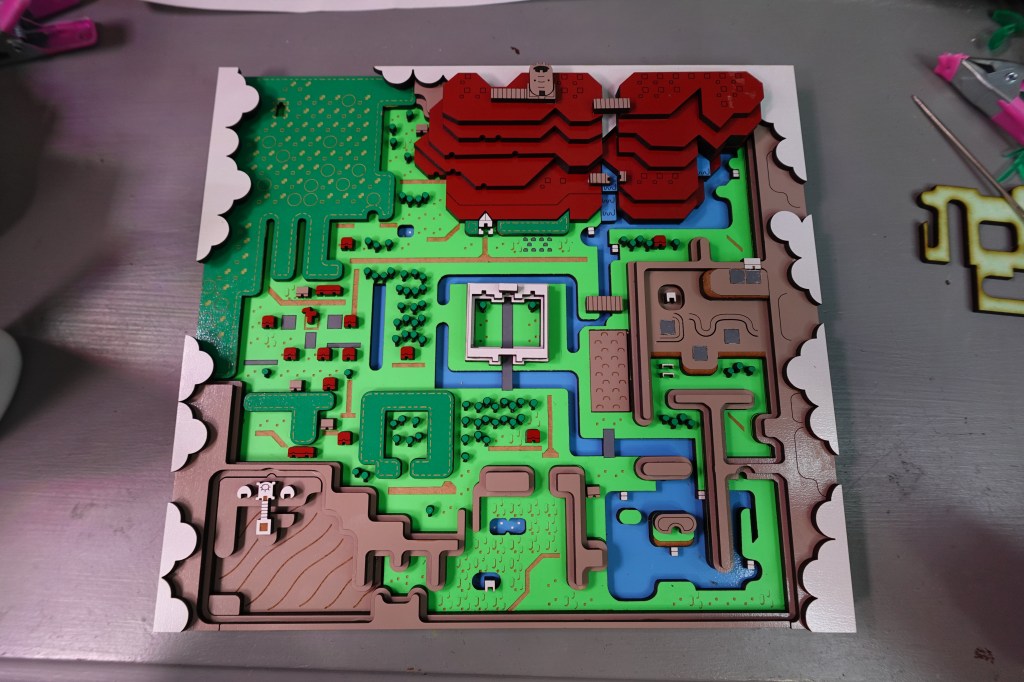
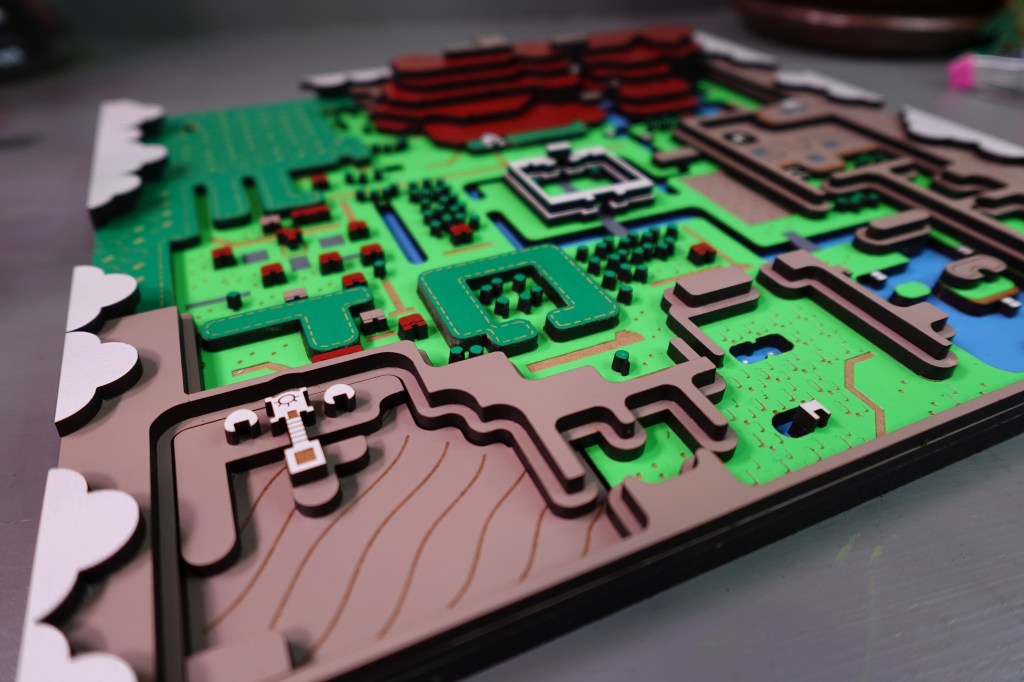
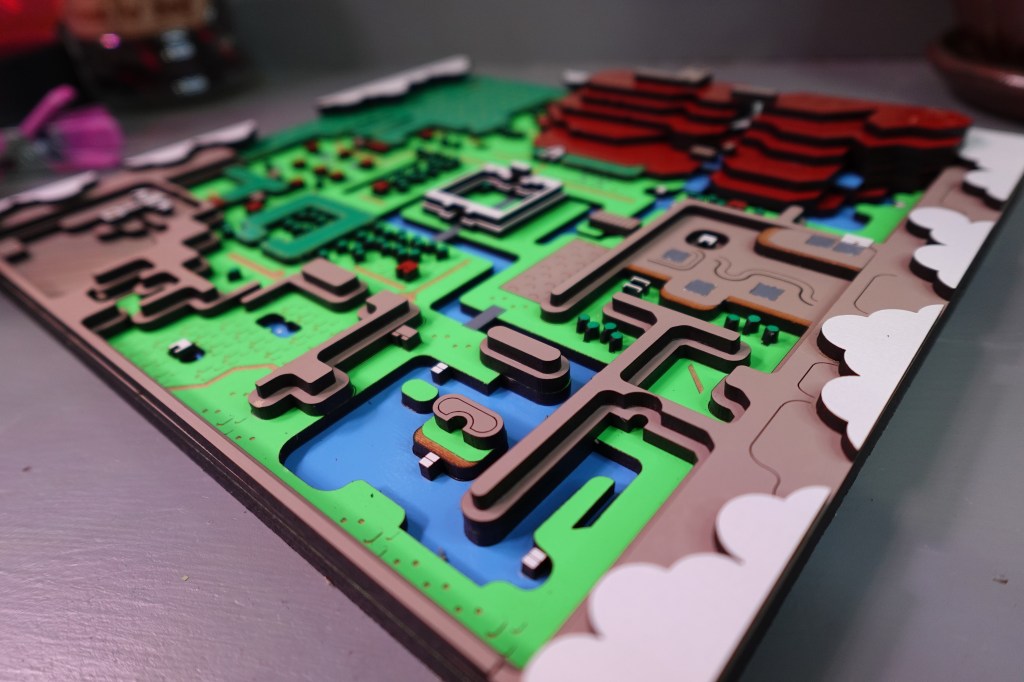

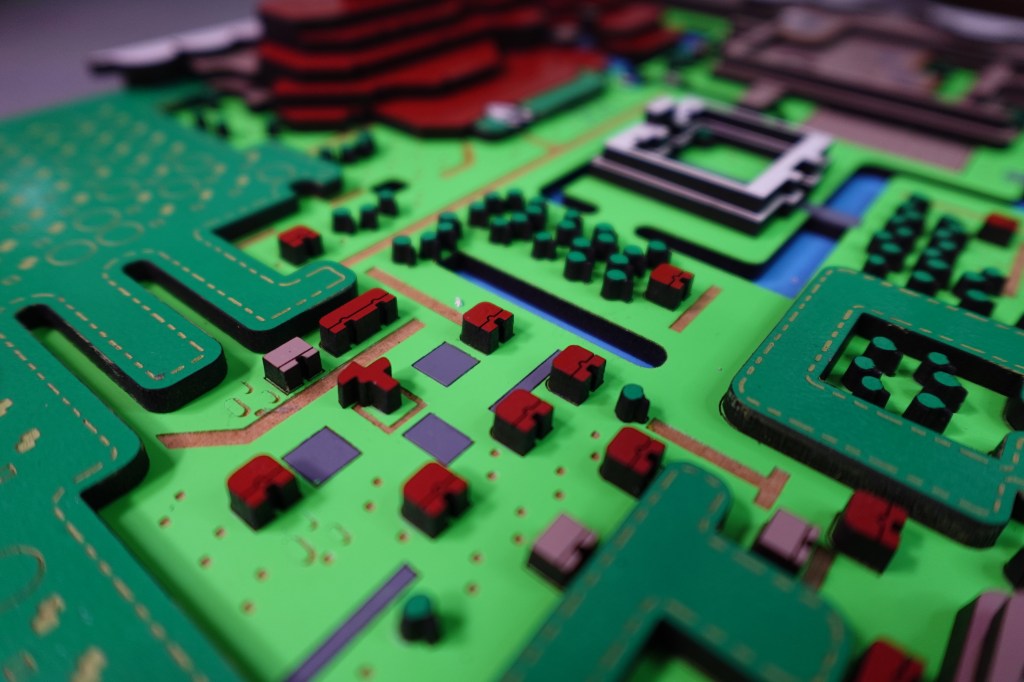
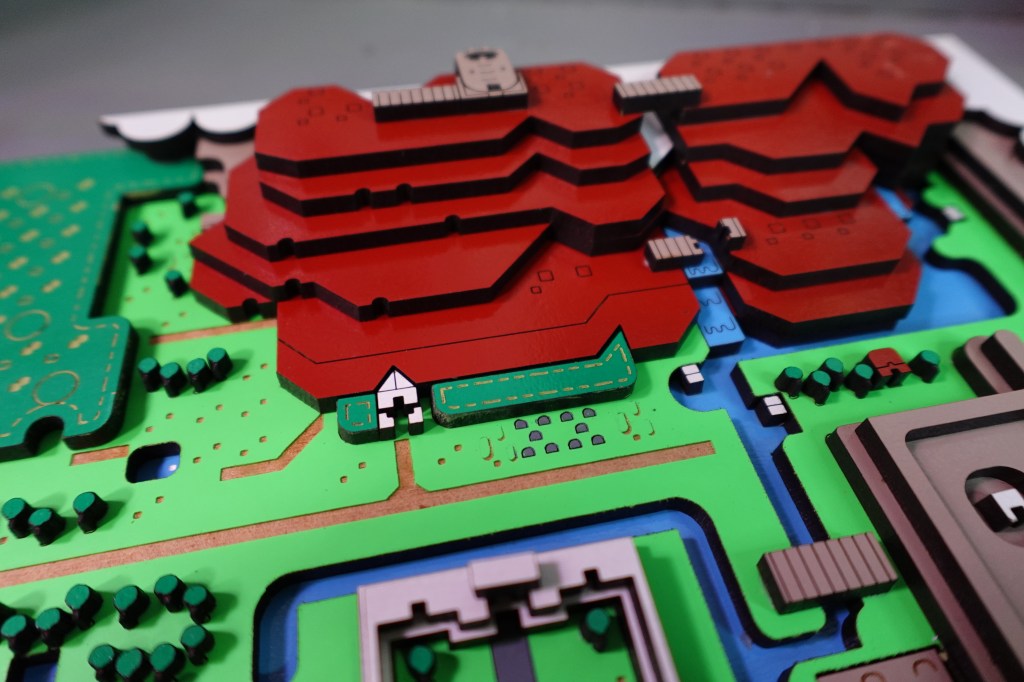
The Final Result?
I hope that was fun to make! Not easy by any means, and probably pretty time consuming! But, I hope that it resulted in a piece you can treasure. I love Legend of Zelda: Link to the Past and now we can share this super fun piece together!
Feel free to email me with pictures of your creations or if you have any questions about the assembly.
If you like this – Check out my SNES Super Mario World Map!!
➕ Learn fun laser tips on my YouTube Channel! Subscribe HERE
 Learn with Laser Lady
Leave a comment